> ## Documentation Index
> Fetch the complete documentation index at: https://help.captureiq.ai/llms.txt
> Use this file to discover all available pages before exploring further.
# CaptureIQ – Dropdown Question
Dropdowns are best when you have a **long list of options** but don’t want to overwhelm users.
 ### How to add a Dropdown question
1. In your editor, click **Add new page**.
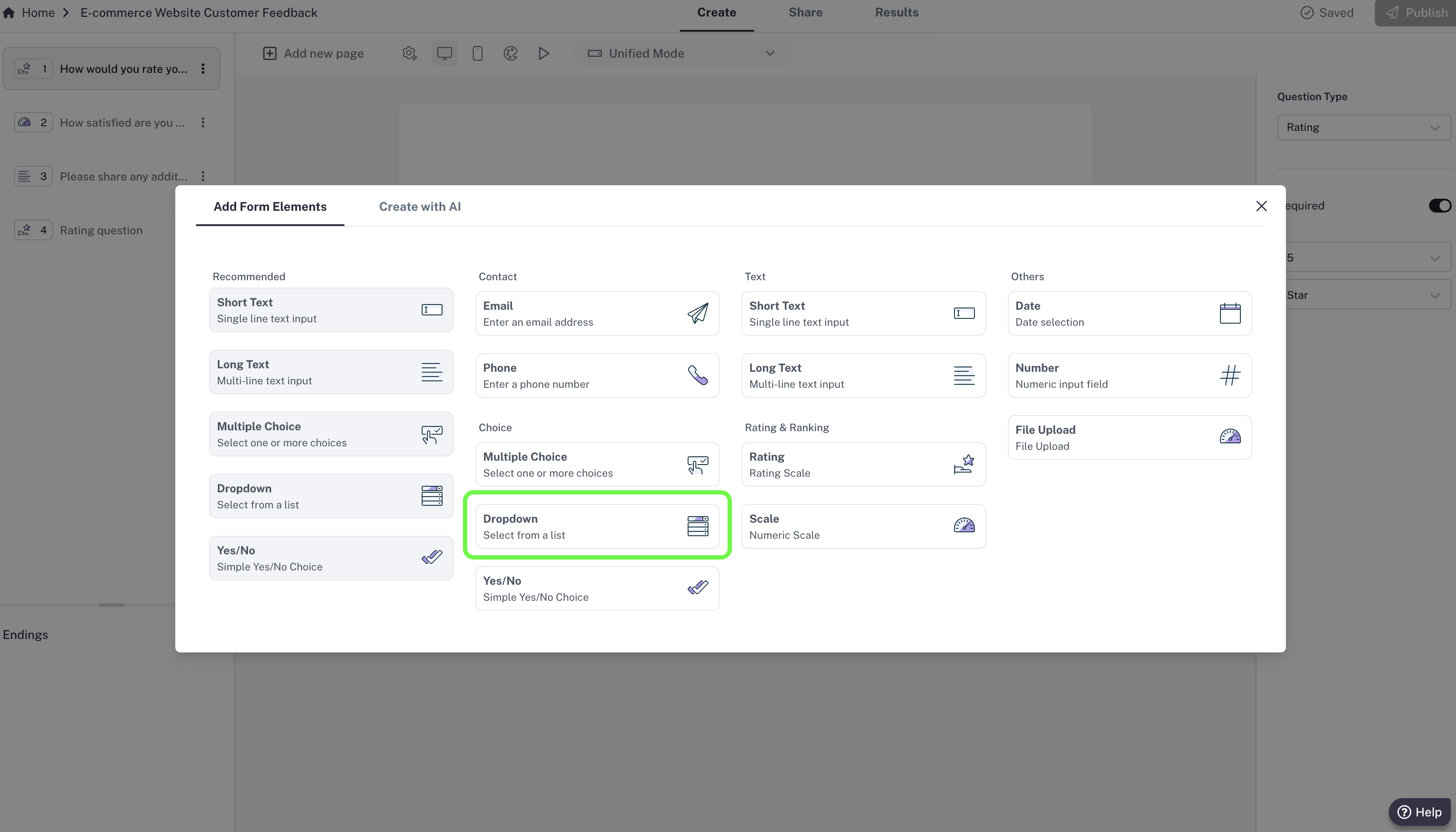
2. Choose **Dropdown** from the list of question types.
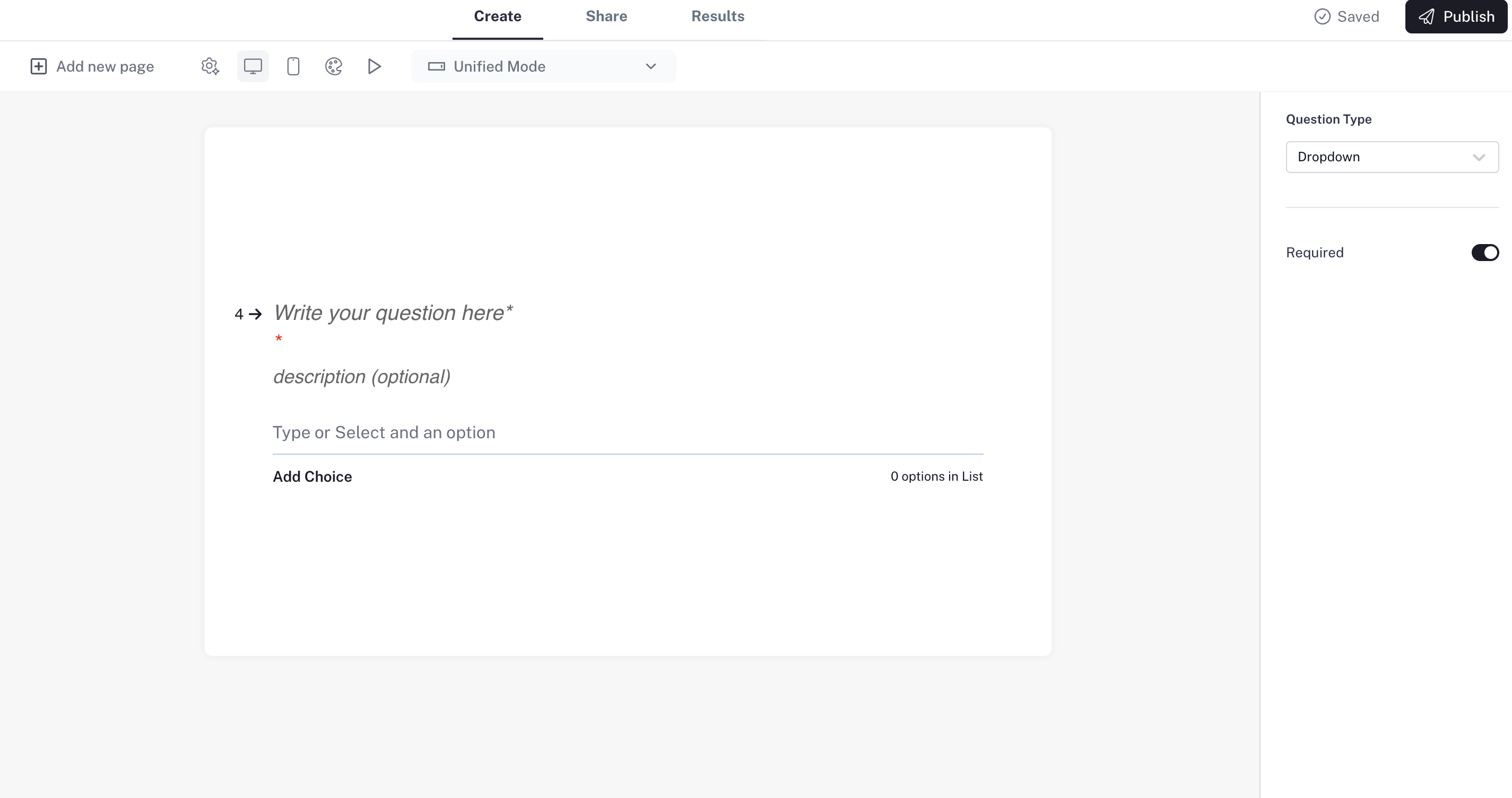
3. Enter your question.
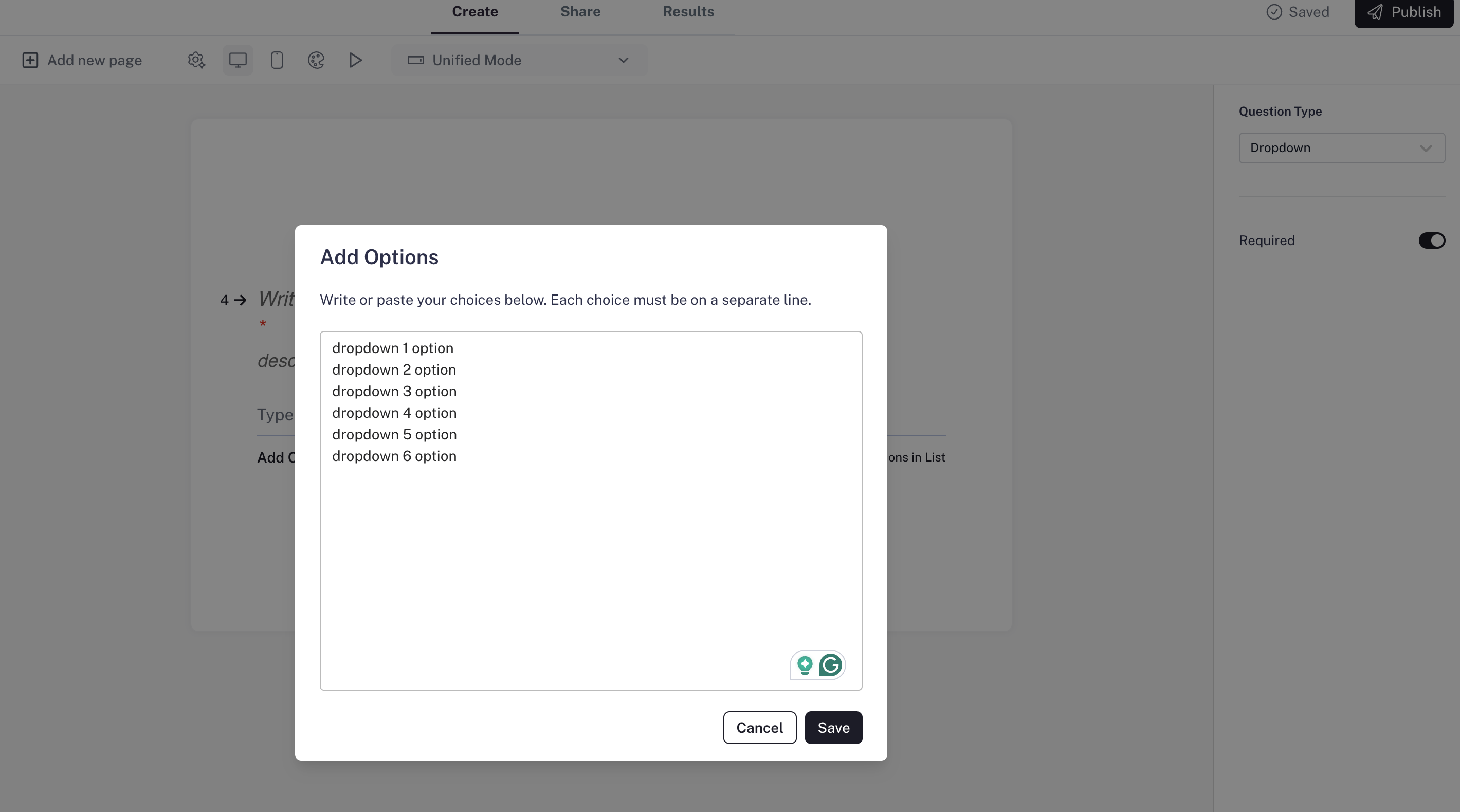
4. Click the **“Add Choices”** button in the editor — a popup will appear where you can enter your options, one per line.
### How to add a Dropdown question
1. In your editor, click **Add new page**.
2. Choose **Dropdown** from the list of question types.
3. Enter your question.
4. Click the **“Add Choices”** button in the editor — a popup will appear where you can enter your options, one per line.
 ### Settings
* **Required question:** Make the question mandatory so respondents can’t skip it.
* **Answer options:** Add as many options as you like in the popup (for example: countries, cities, product names). You can edit or reorder them anytime.
Use a Dropdown instead of Multiple Choice when you have\
more than about 7 options to keep things neat and easy to scan.
### Settings
* **Required question:** Make the question mandatory so respondents can’t skip it.
* **Answer options:** Add as many options as you like in the popup (for example: countries, cities, product names). You can edit or reorder them anytime.
Use a Dropdown instead of Multiple Choice when you have\
more than about 7 options to keep things neat and easy to scan.