> ## Documentation Index
> Fetch the complete documentation index at: https://help.captureiq.ai/llms.txt
> Use this file to discover all available pages before exploring further.
# CaptureIQ – Yes/No Question
Sometimes, all you need is a **simple binary choice**. That’s where Yes/No questions shine.
 ### How to add a Yes/No question
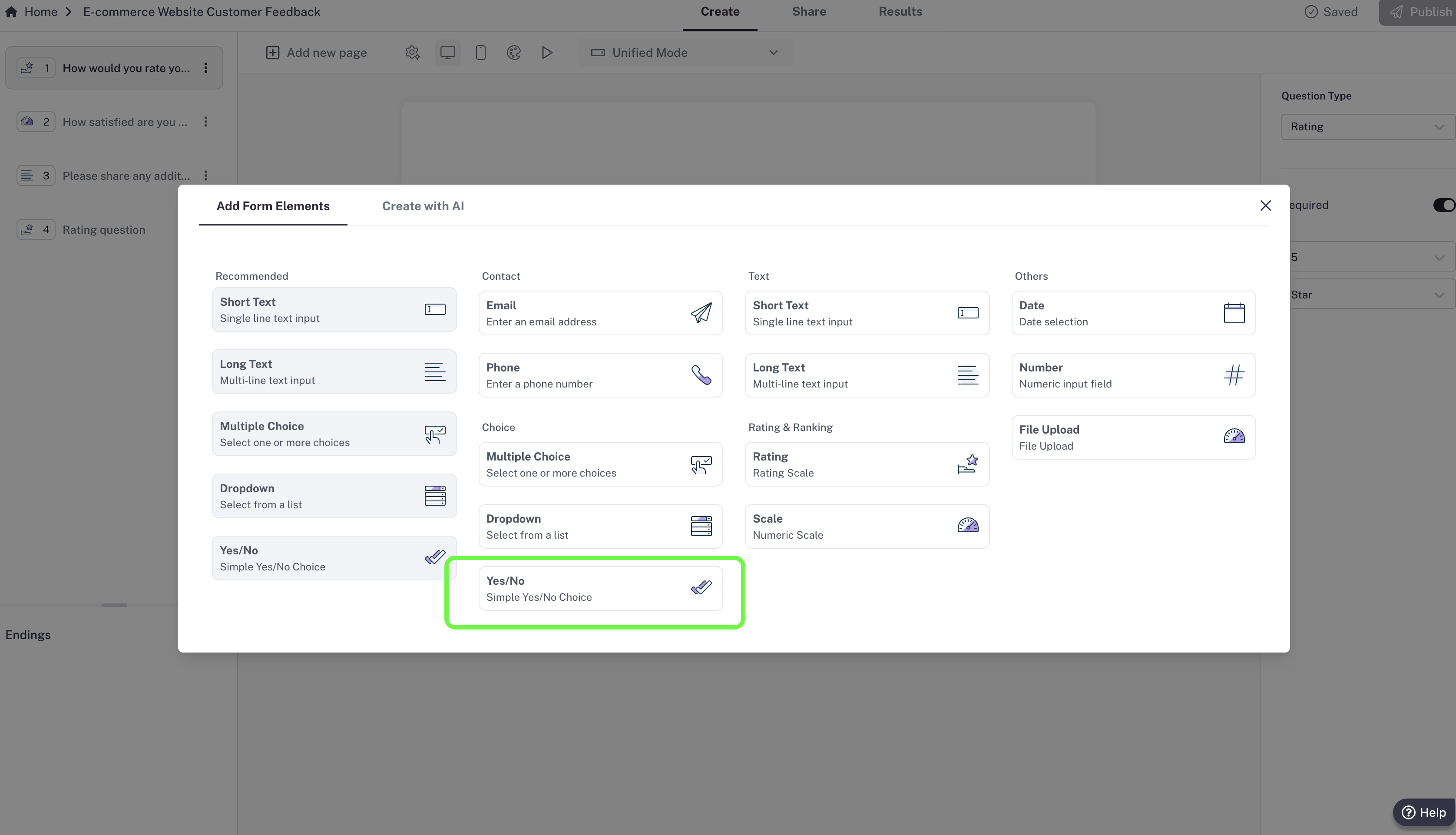
1. In your editor, click **Add new page**.
2. Choose **Yes/No** from the list of question types.
3. Enter your question (for example: “Would you recommend us to a friend?”).
### How to add a Yes/No question
1. In your editor, click **Add new page**.
2. Choose **Yes/No** from the list of question types.
3. Enter your question (for example: “Would you recommend us to a friend?”).
 ### Settings
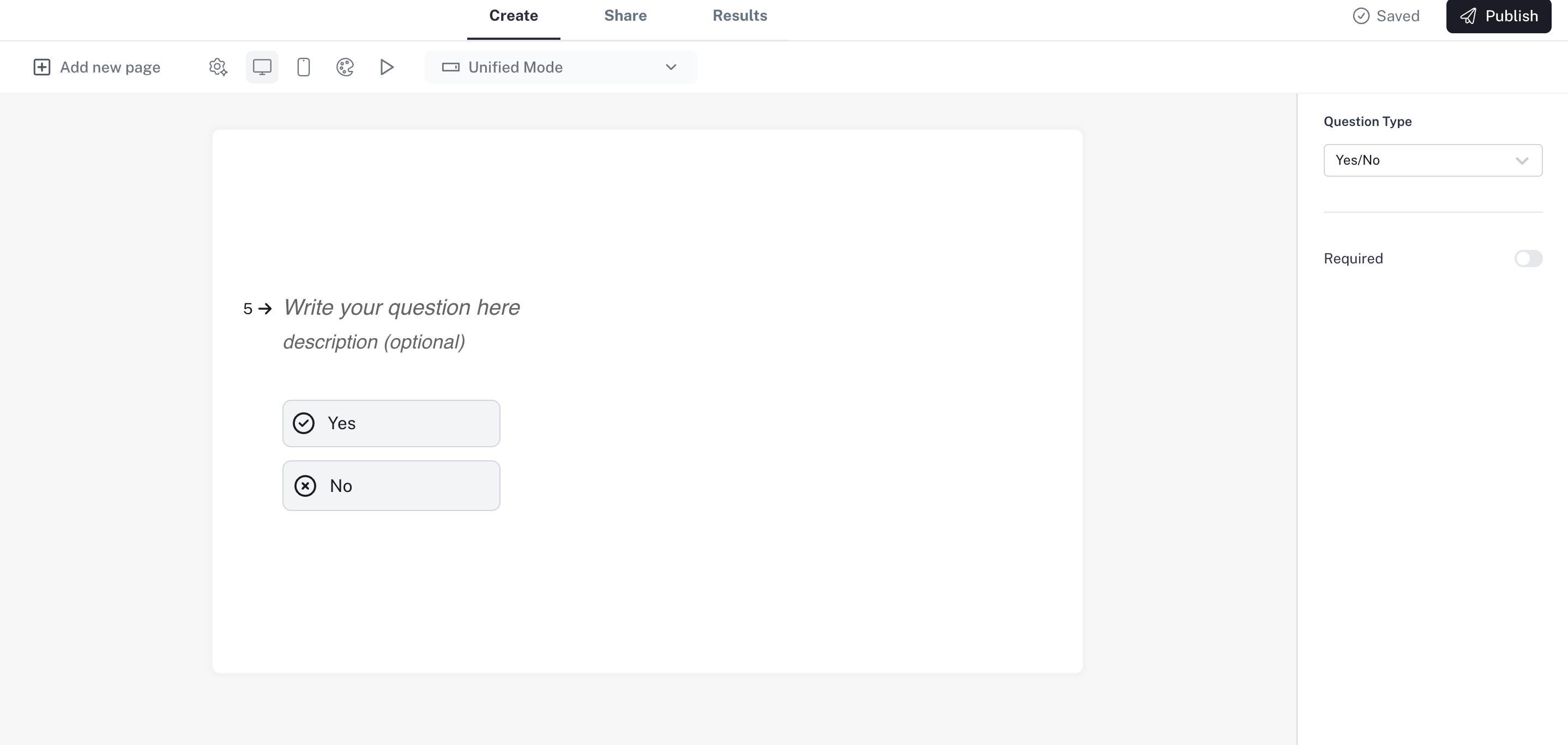
* **Answer options:** Respondents can only pick **Yes** or **No**.
* **Required question:** Make the question mandatory so respondents can’t skip it.
Example: Great for quick confirmations, consent forms, or simple feedback questions.
### Settings
* **Answer options:** Respondents can only pick **Yes** or **No**.
* **Required question:** Make the question mandatory so respondents can’t skip it.
Example: Great for quick confirmations, consent forms, or simple feedback questions.