> ## Documentation Index
> Fetch the complete documentation index at: https://help.captureiq.ai/llms.txt
> Use this file to discover all available pages before exploring further.
# CaptureIQ – Date Question
Use a **Date field** whenever you need to collect schedules, appointments, or birthdays.
 ### **How to add a Date question**
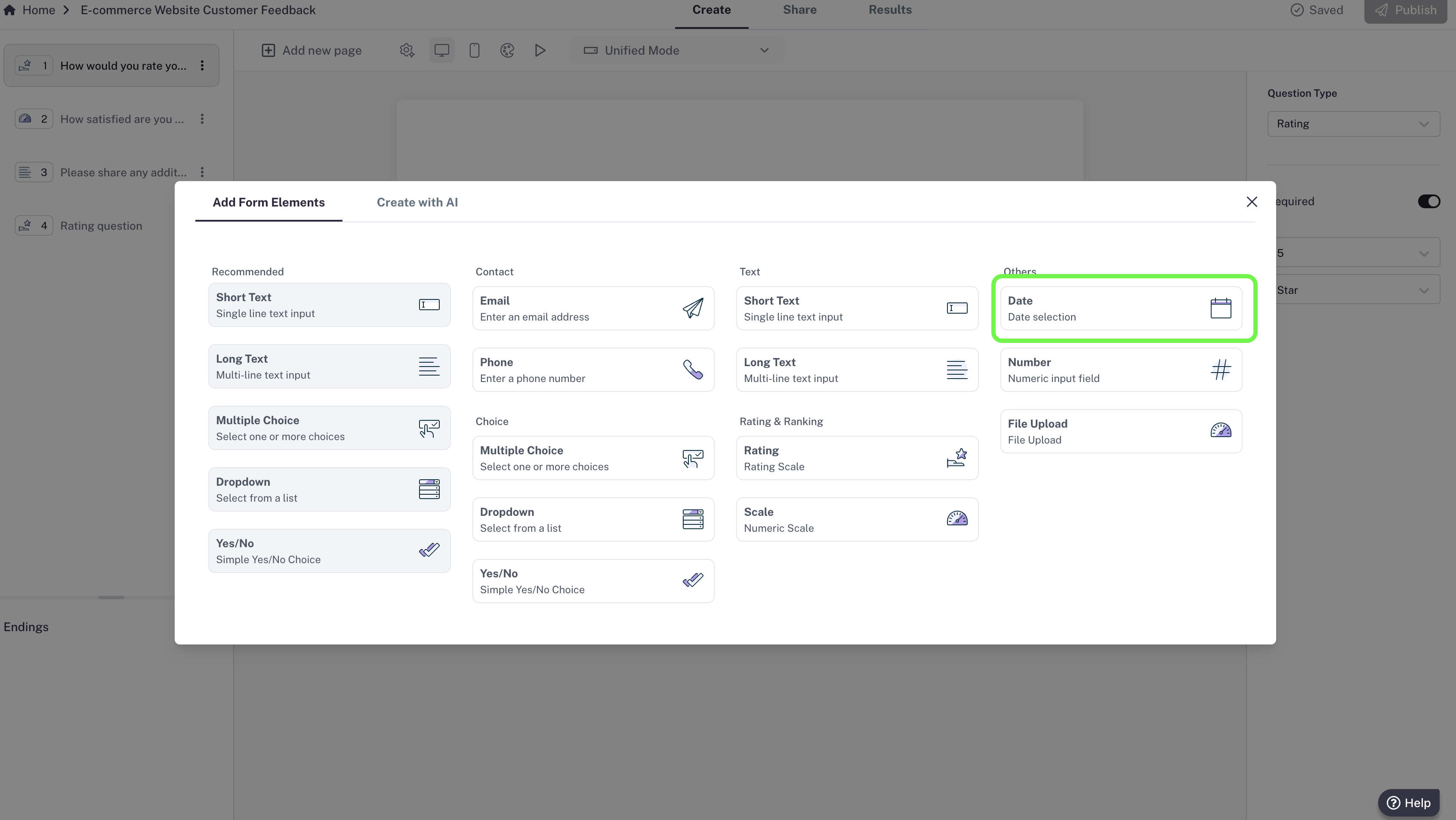
1. In your editor, click **Add new page**.
2. Select **Date** from the list of question types.
3. Type your question (e.g., “What date works best for you?”).
### **How to add a Date question**
1. In your editor, click **Add new page**.
2. Select **Date** from the list of question types.
3. Type your question (e.g., “What date works best for you?”).
 ### **Settings**
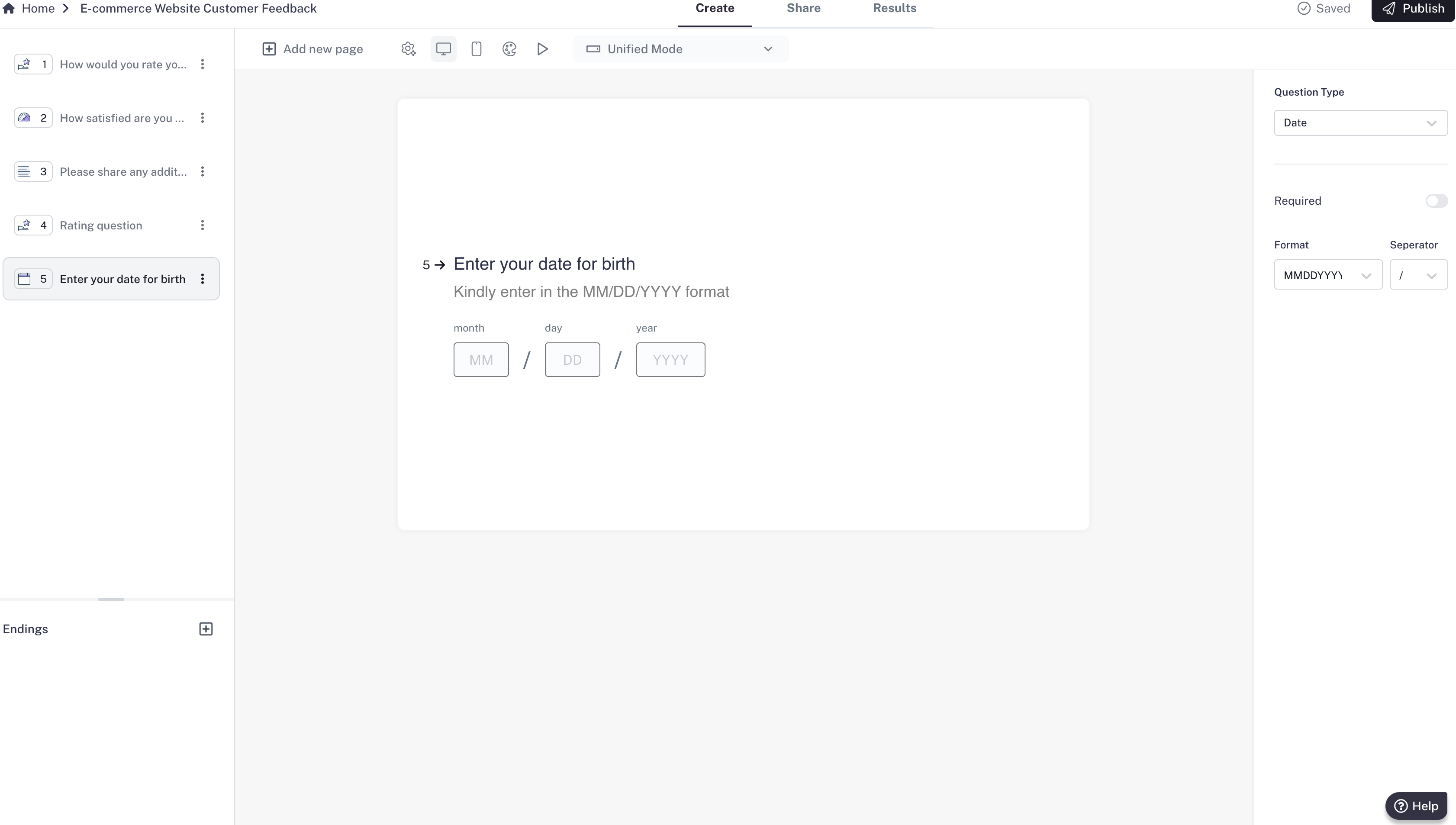
* By default, responses must follow a valid date format.
* **Required question:** Make the question mandatory so respondents can’t skip it.
Use this for booking forms, event registrations, or survey timelines.
### **Settings**
* By default, responses must follow a valid date format.
* **Required question:** Make the question mandatory so respondents can’t skip it.
Use this for booking forms, event registrations, or survey timelines.