> ## Documentation Index
> Fetch the complete documentation index at: https://help.captureiq.ai/llms.txt
> Use this file to discover all available pages before exploring further.
# CaptureIQ – File Upload Question
Need documents, resumes, or supporting files? The **File Upload** field makes it possible.
 ### **How to add File Upload**
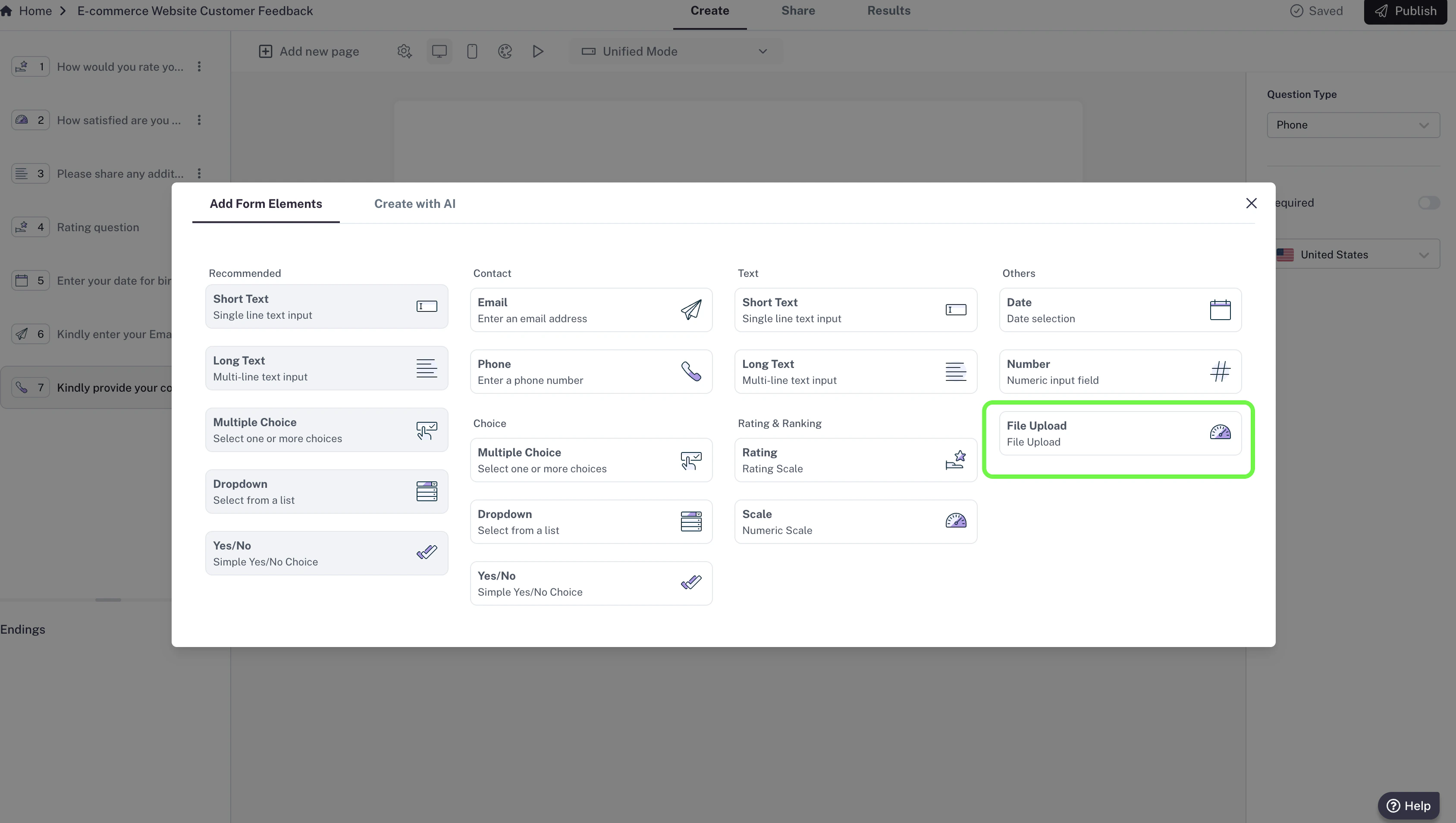
1. In your editor, click **Add new page**.
2. Select **File Upload** from the list of question types..
3. Add your question (e.g., “Upload your CV here”).
### **How to add File Upload**
1. In your editor, click **Add new page**.
2. Select **File Upload** from the list of question types..
3. Add your question (e.g., “Upload your CV here”).
 ### **Settings**
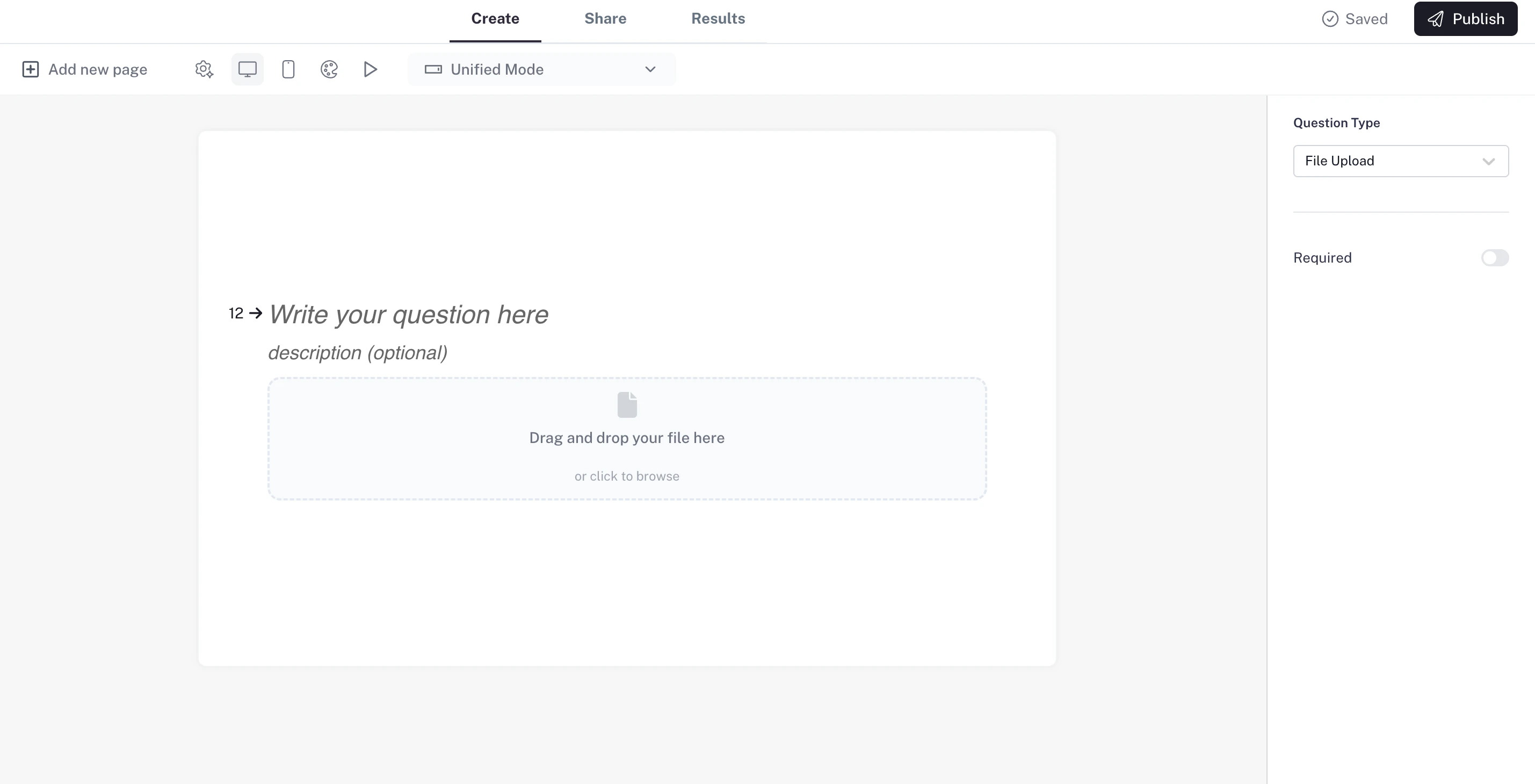
* **Required question:** Make the file upload mandatory so respondents can’t skip it.
* **Attach files:** Respondents can upload files directly in the form — either by clicking **Upload** or by simply **dragging and dropping** their files.
* **Storage:** CaptureIQ securely stores the uploaded file together with the respondent’s answers.
Use case: Ideal for job applications, assignment submissions, or support tickets where files are needed.
### **Settings**
* **Required question:** Make the file upload mandatory so respondents can’t skip it.
* **Attach files:** Respondents can upload files directly in the form — either by clicking **Upload** or by simply **dragging and dropping** their files.
* **Storage:** CaptureIQ securely stores the uploaded file together with the respondent’s answers.
Use case: Ideal for job applications, assignment submissions, or support tickets where files are needed.