> ## Documentation Index
> Fetch the complete documentation index at: https://help.captureiq.ai/llms.txt
> Use this file to discover all available pages before exploring further.
# Navigation arrows in CaptureIQ published forms
When filling out a form, navigation arrows help respondents move between questions quickly. CaptureIQ gives you the option to **show or hide navigation arrows** in your published forms depending on the experience you want to create.
For example:
* **Show arrows** if you want users to freely move back and forth between questions.
* **Hide arrows** if you want the flow to feel more linear and focused.
 ### How to show or hide navigation arrows
1. Open an existing form (or create a new one) in CaptureIQ.
2. Go to **Form Settings** icon in the editor panel.
3. Find the **Navigation Arrows** toggle.
* **On:** Arrows will be visible, allowing users to move back and forth.
* **Off:** Arrows will be hidden, so users move only in the designed flow.
### How to show or hide navigation arrows
1. Open an existing form (or create a new one) in CaptureIQ.
2. Go to **Form Settings** icon in the editor panel.
3. Find the **Navigation Arrows** toggle.
* **On:** Arrows will be visible, allowing users to move back and forth.
* **Off:** Arrows will be hidden, so users move only in the designed flow.

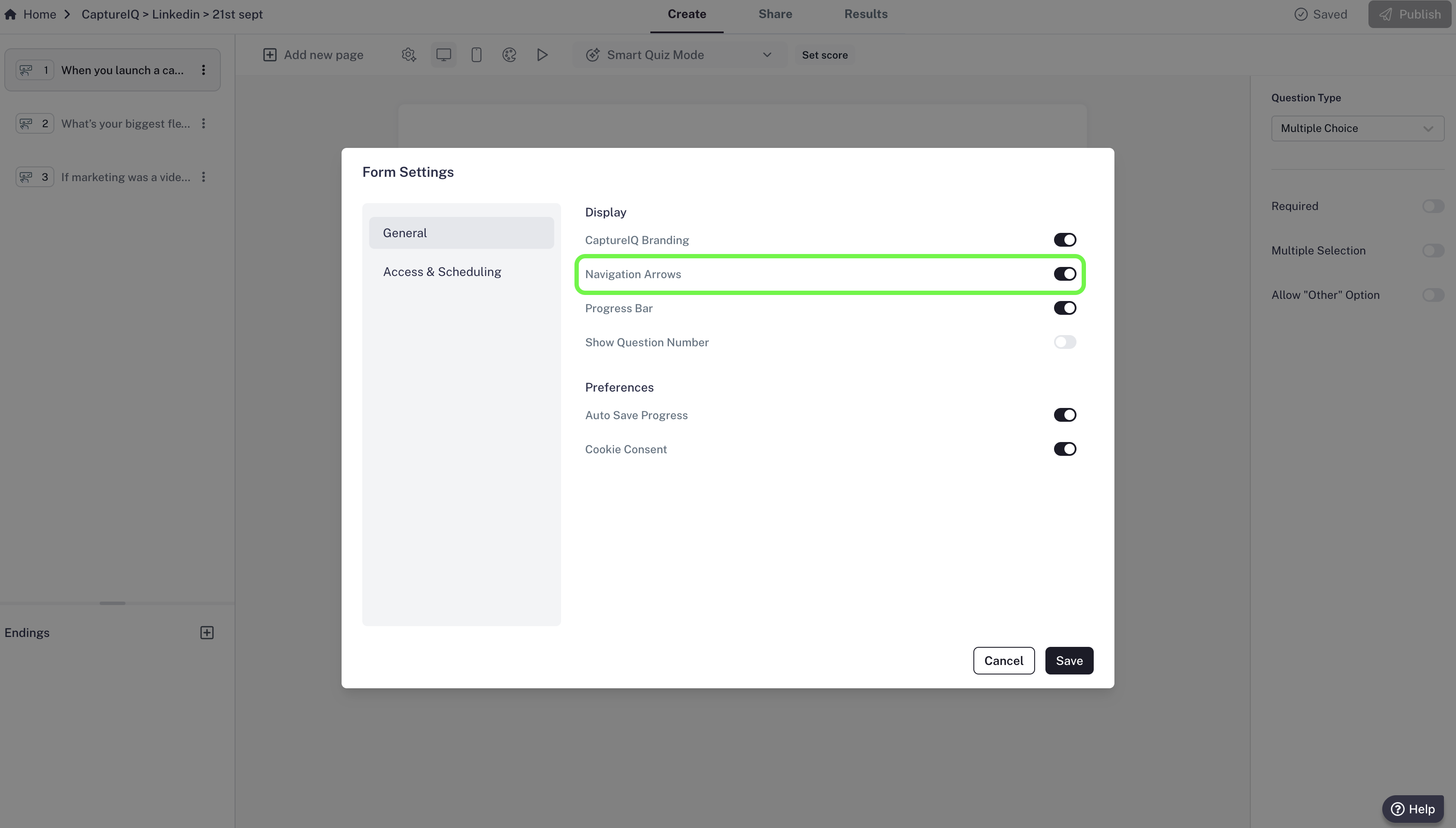 The toggle is on by default.