> ## Documentation Index
> Fetch the complete documentation index at: https://help.captureiq.ai/llms.txt
> Use this file to discover all available pages before exploring further.
# Set Up a Custom Domain for Your Form URLs
> Learn how to connect and use your own domain for all published CaptureIQ form links.
Setting up a **custom domain** allows you to personalize your published form URLs — making them more trustworthy, branded, and professional (e.g., `forms.yourcompany.com/form-id` instead of `captureiq.ai/form-id`).
> ⚙️ You can manage your domain settings from the **Form Settings** section inside your organization’s settings panel.
***
## 🚀 How to Set Up a Custom Domain
### 1. Go to Form Settings
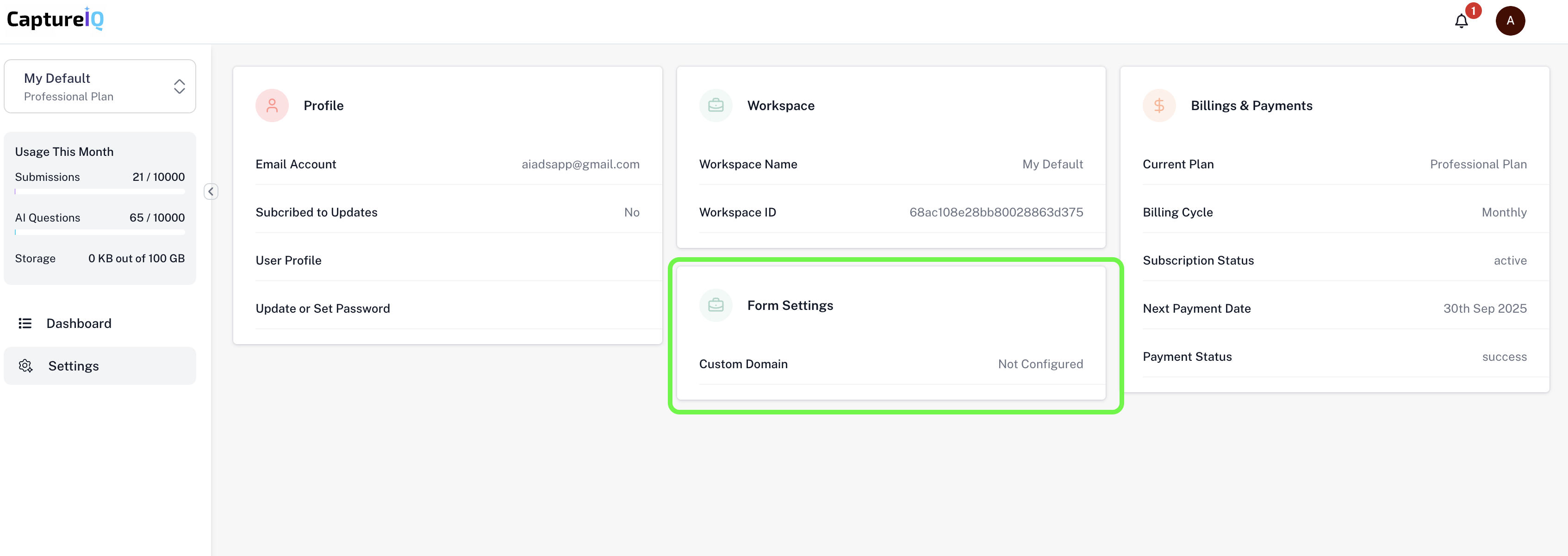
* Navigate to the **Settings** page from the left sidebar.
* Click on the **Form Settings** tile.
 * You’ll be taken to a page where you’ll see:
* **Organization URL**
* **Add Custom Domain** input box
* You’ll be taken to a page where you’ll see:
* **Organization URL**
* **Add Custom Domain** input box
 ### 2. Add Your Domain
* In the **Add Custom Domain** input box, enter your desired domain or subdomain (e.g., `forms.yourdomain.com`).
* Click the **Add Domain** button.
### 3. View & Add DNS Records
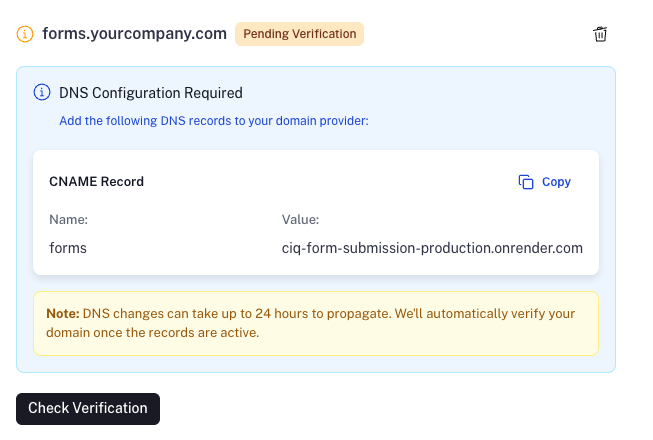
After clicking **Add Domain**, an information box will appear showing the required **DNS records** to add to your domain provider (e.g., GoDaddy, Namecheap, Cloudflare).
We support both:
* ✅ **CNAME Record**
* ✅ **A Record**
> ⚠️ **Note**:\
> DNS changes can take up to **24 hours** to propagate.\
> We’ll automatically verify your domain once the records are active.
*Here’s what the DNS instruction box will look like:*
### 2. Add Your Domain
* In the **Add Custom Domain** input box, enter your desired domain or subdomain (e.g., `forms.yourdomain.com`).
* Click the **Add Domain** button.
### 3. View & Add DNS Records
After clicking **Add Domain**, an information box will appear showing the required **DNS records** to add to your domain provider (e.g., GoDaddy, Namecheap, Cloudflare).
We support both:
* ✅ **CNAME Record**
* ✅ **A Record**
> ⚠️ **Note**:\
> DNS changes can take up to **24 hours** to propagate.\
> We’ll automatically verify your domain once the records are active.
*Here’s what the DNS instruction box will look like:*
 *If you're using a specific provider like Cloudflare or GoDaddy, you can follow their documentation to add a new record.*
***
### 4. Done! Your Custom Domain is Active 🎉
From now on, all published form links will use your custom domain instead of the default CaptureIQ URL.
> 📝 Even after setting a custom domain, the original `captureiq.ai` links will **still continue to work** as a fallback.
***
## 🧹 How to Remove a Custom Domain
You can delete your custom domain at any time from the same **Form Settings** page.
Once deleted:
* All published forms will **revert to using the default `captureiq.ai`** URLs.
* The custom domain URLs will **stop working**.
***
## ✅ Best Practices
* Use a **subdomain** like `forms.yourdomain.com` rather than a root domain.
* Set DNS records with a low TTL (Time to Live) for faster updates.
* Ensure your domain is not already in use by another service.
***
Need help or facing issues with verification?\
Reach out to our support team from the chat widget or drop an email to **[support@captureiq.ai](mailto:support@captureiq.ai)**.
*If you're using a specific provider like Cloudflare or GoDaddy, you can follow their documentation to add a new record.*
***
### 4. Done! Your Custom Domain is Active 🎉
From now on, all published form links will use your custom domain instead of the default CaptureIQ URL.
> 📝 Even after setting a custom domain, the original `captureiq.ai` links will **still continue to work** as a fallback.
***
## 🧹 How to Remove a Custom Domain
You can delete your custom domain at any time from the same **Form Settings** page.
Once deleted:
* All published forms will **revert to using the default `captureiq.ai`** URLs.
* The custom domain URLs will **stop working**.
***
## ✅ Best Practices
* Use a **subdomain** like `forms.yourdomain.com` rather than a root domain.
* Set DNS records with a low TTL (Time to Live) for faster updates.
* Ensure your domain is not already in use by another service.
***
Need help or facing issues with verification?\
Reach out to our support team from the chat widget or drop an email to **[support@captureiq.ai](mailto:support@captureiq.ai)**.