> ## Documentation Index
> Fetch the complete documentation index at: https://help.captureiq.ai/llms.txt
> Use this file to discover all available pages before exploring further.
# How to Embed a CaptureIQ Form in Email
> Learn how to embed CaptureIQ forms in emails using Mailchimp, HubSpot, or other tools. Show the first question inside the email, boost engagement, and drive higher completion rates.
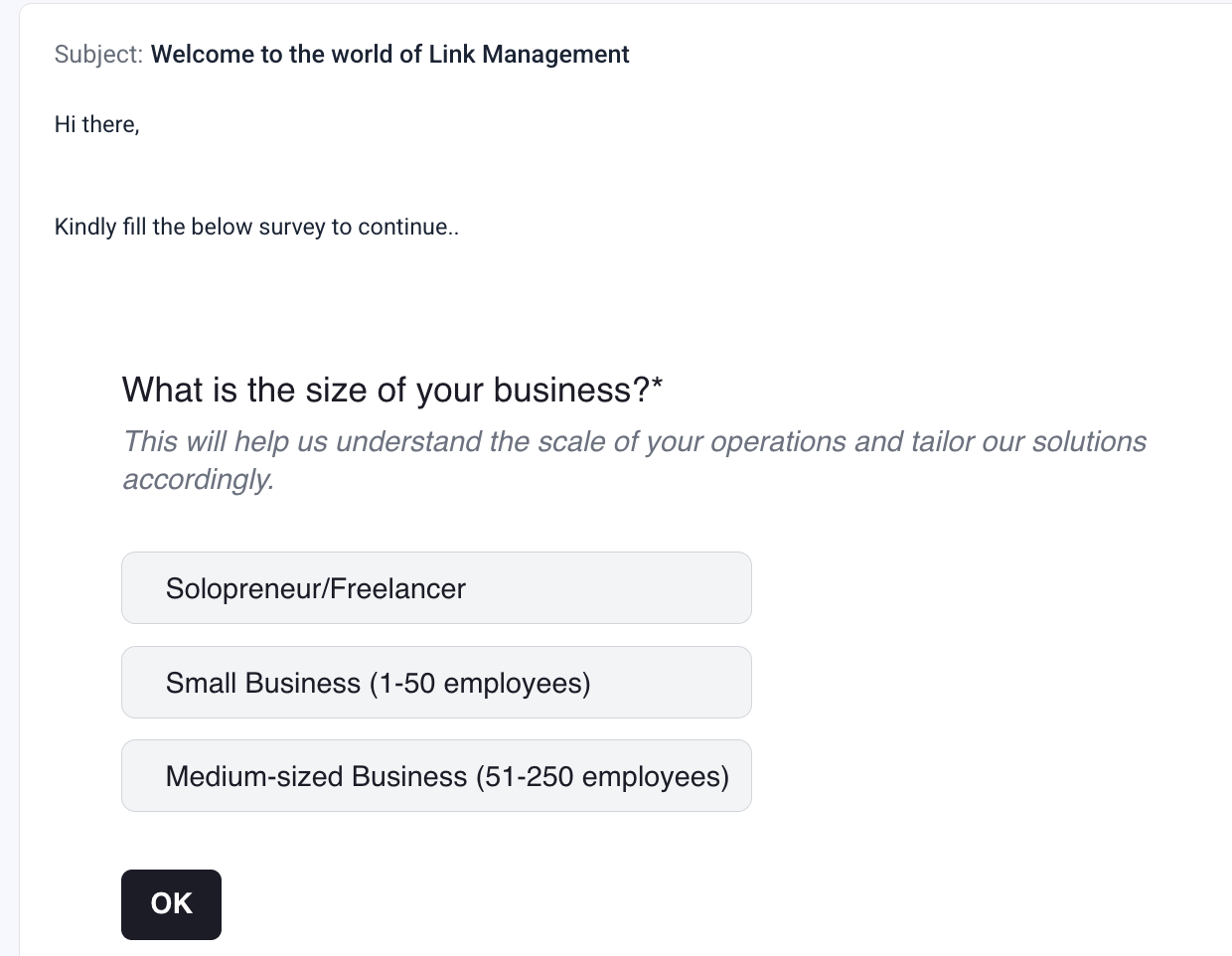
Embedding your **CaptureIQ form in an email** is a smart way to boost engagement and encourage more people to start your form. Instead of just seeing a link, your audience will see the **first question of your form previewed inside the email**.
When a recipient clicks on the question or any option, the form will automatically open in their **browser**, where they can complete the rest of it. This creates a smoother entry point and makes your email campaigns more interactive.
 ***
## **When to Use Email Embed**
Email embedding works especially well for:
* **NPS (Net Promoter Score)** surveys
* **Yes/No questions**
* **Multiple Choice questions**
* **Rating questions**
Email embed **does not support Date or File Upload questions** as the first question. If your form starts with these, the embed option will not work correctly.
***
## **How to Embed a CaptureIQ Form in Email**
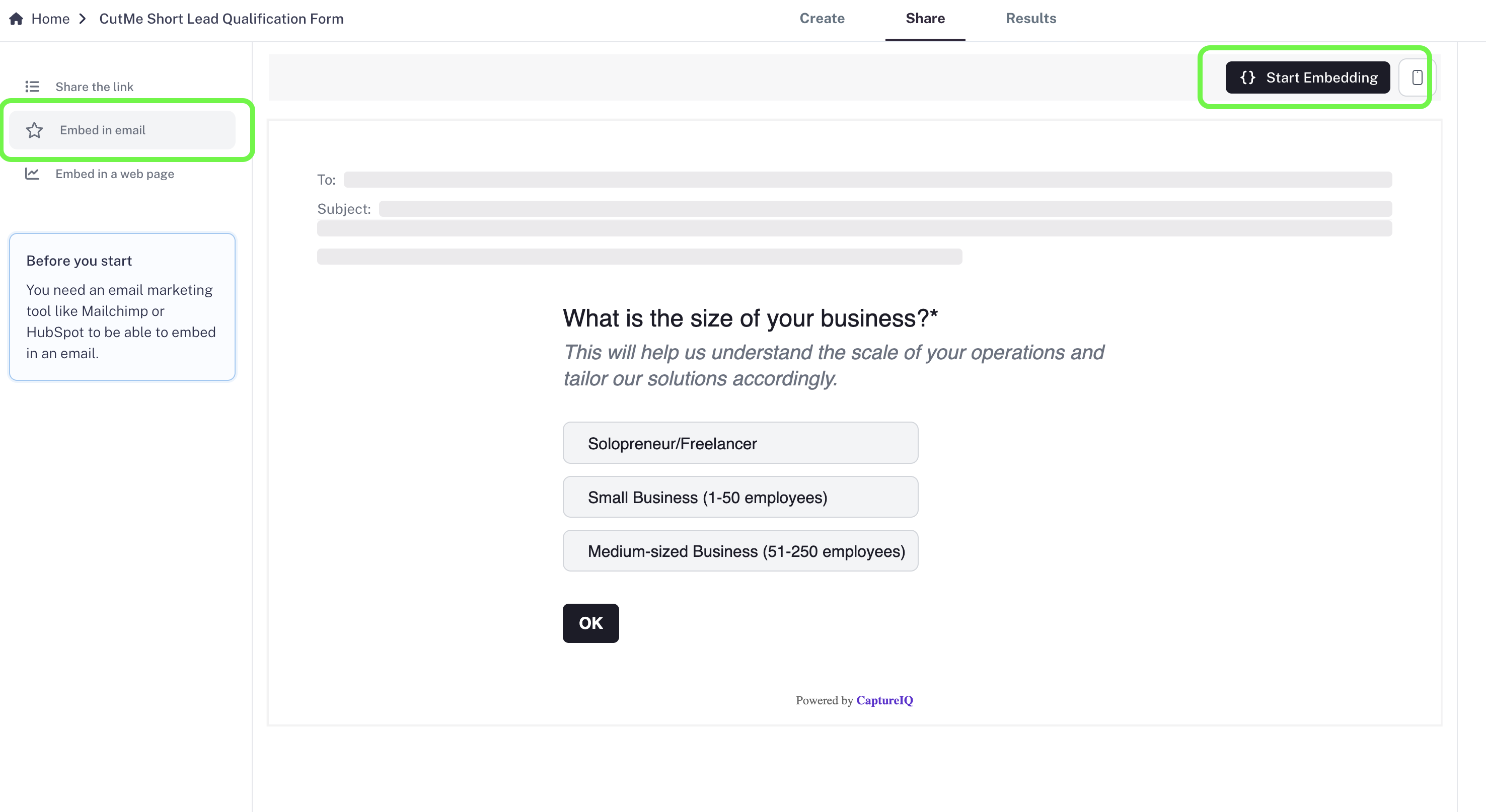
### **Step 1: Open Share Settings**
1. Go to your **CaptureIQ Dashboard**.
2. Select the form you want to share.
3. Make sure the form is **published** (the Share tab is disabled until you publish).
4. Navigate to the **Share** tab.
5. Click **Embed in Email** from the sidebar.
***
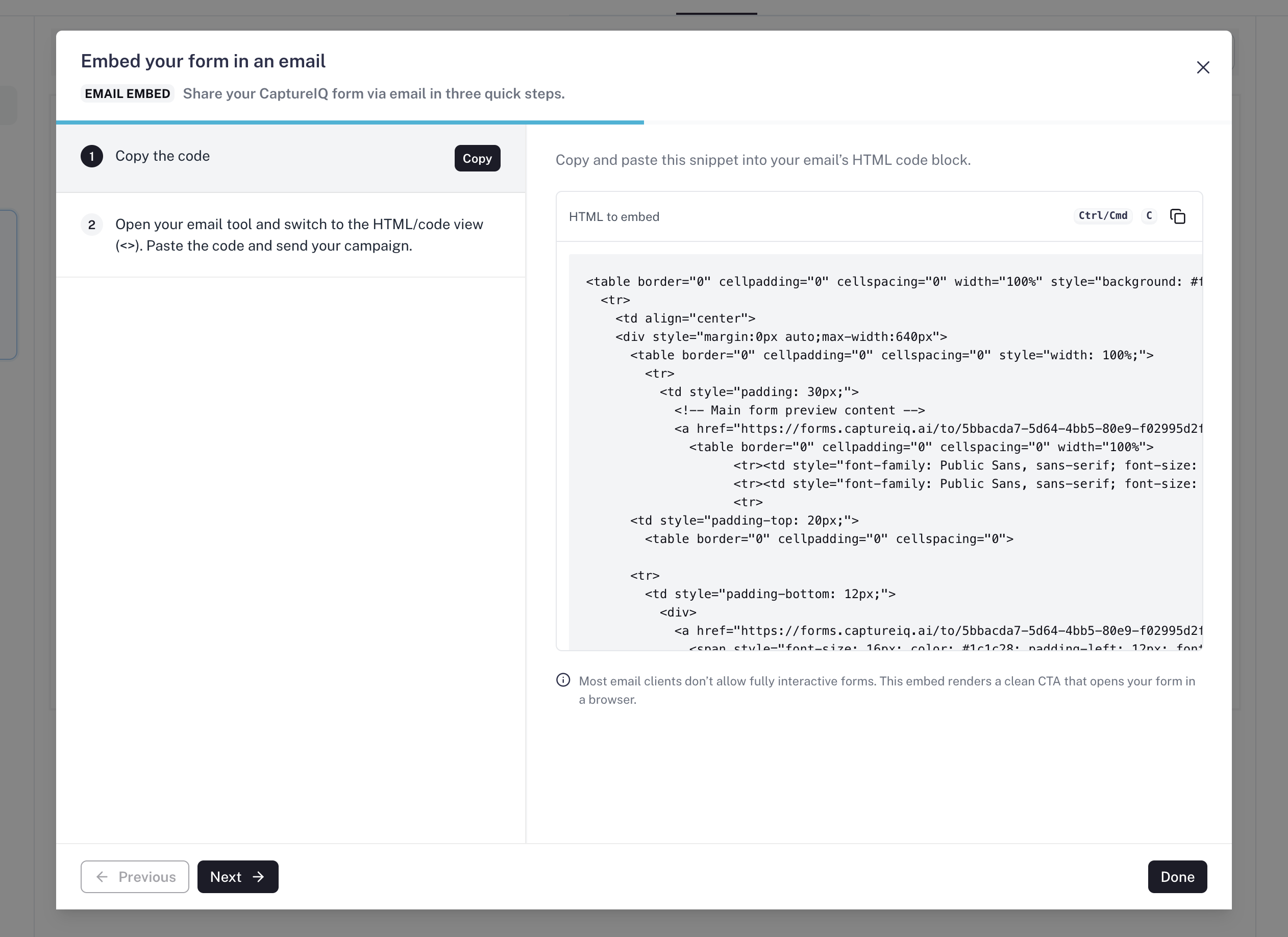
### **Step 2: Generate the Embed Code**
* A popup will appear with the embed code.
* Click **Copy** to copy the code.
***
### **Step 3: Add the Code to Your Email Tool**
The embed code works with most professional **email marketing platforms** like:
* Mailchimp
* HubSpot
* ActiveCampaign
* Sendinblue
It will **not work in personal email providers** like Gmail or Outlook.
Steps:
1. Open your email campaign inside your marketing tool.
2. Insert a **Code Block** or **HTML Block** into the email body.
3. Paste the copied CaptureIQ embed code.
4. Save and preview the email to confirm that the first question appears correctly.
***
## **When to Use Email Embed**
Email embedding works especially well for:
* **NPS (Net Promoter Score)** surveys
* **Yes/No questions**
* **Multiple Choice questions**
* **Rating questions**
Email embed **does not support Date or File Upload questions** as the first question. If your form starts with these, the embed option will not work correctly.
***
## **How to Embed a CaptureIQ Form in Email**
### **Step 1: Open Share Settings**
1. Go to your **CaptureIQ Dashboard**.
2. Select the form you want to share.
3. Make sure the form is **published** (the Share tab is disabled until you publish).
4. Navigate to the **Share** tab.
5. Click **Embed in Email** from the sidebar.
***
### **Step 2: Generate the Embed Code**
* A popup will appear with the embed code.
* Click **Copy** to copy the code.
***
### **Step 3: Add the Code to Your Email Tool**
The embed code works with most professional **email marketing platforms** like:
* Mailchimp
* HubSpot
* ActiveCampaign
* Sendinblue
It will **not work in personal email providers** like Gmail or Outlook.
Steps:
1. Open your email campaign inside your marketing tool.
2. Insert a **Code Block** or **HTML Block** into the email body.
3. Paste the copied CaptureIQ embed code.
4. Save and preview the email to confirm that the first question appears correctly.
 ***
## **Notes & Tips for Best Results**
* **Completion Tracking:** A response is only recorded once the user completes the form in the browser. If they only click in the email but don’t finish, it won’t count as a submission. Always encourage users to complete the form.
* **Width Adjustment:** By default, the form embed is **640px wide**. If your email layout is narrower (like 480px), adjust the width in the embed code.
* **Updating Forms:** If you change your form (like editing the first question), you’ll need to **regenerate and re-paste** the embed code into your email platform.
* **Test Before Sending:** Always send yourself a test email to confirm the first question appears and redirects properly.
***
## **Notes & Tips for Best Results**
* **Completion Tracking:** A response is only recorded once the user completes the form in the browser. If they only click in the email but don’t finish, it won’t count as a submission. Always encourage users to complete the form.
* **Width Adjustment:** By default, the form embed is **640px wide**. If your email layout is narrower (like 480px), adjust the width in the embed code.
* **Updating Forms:** If you change your form (like editing the first question), you’ll need to **regenerate and re-paste** the embed code into your email platform.
* **Test Before Sending:** Always send yourself a test email to confirm the first question appears and redirects properly.