> ## Documentation Index
> Fetch the complete documentation index at: https://help.captureiq.ai/llms.txt
> Use this file to discover all available pages before exploring further.
# Create CaptureIQ Account
## Step-by-Step Guide
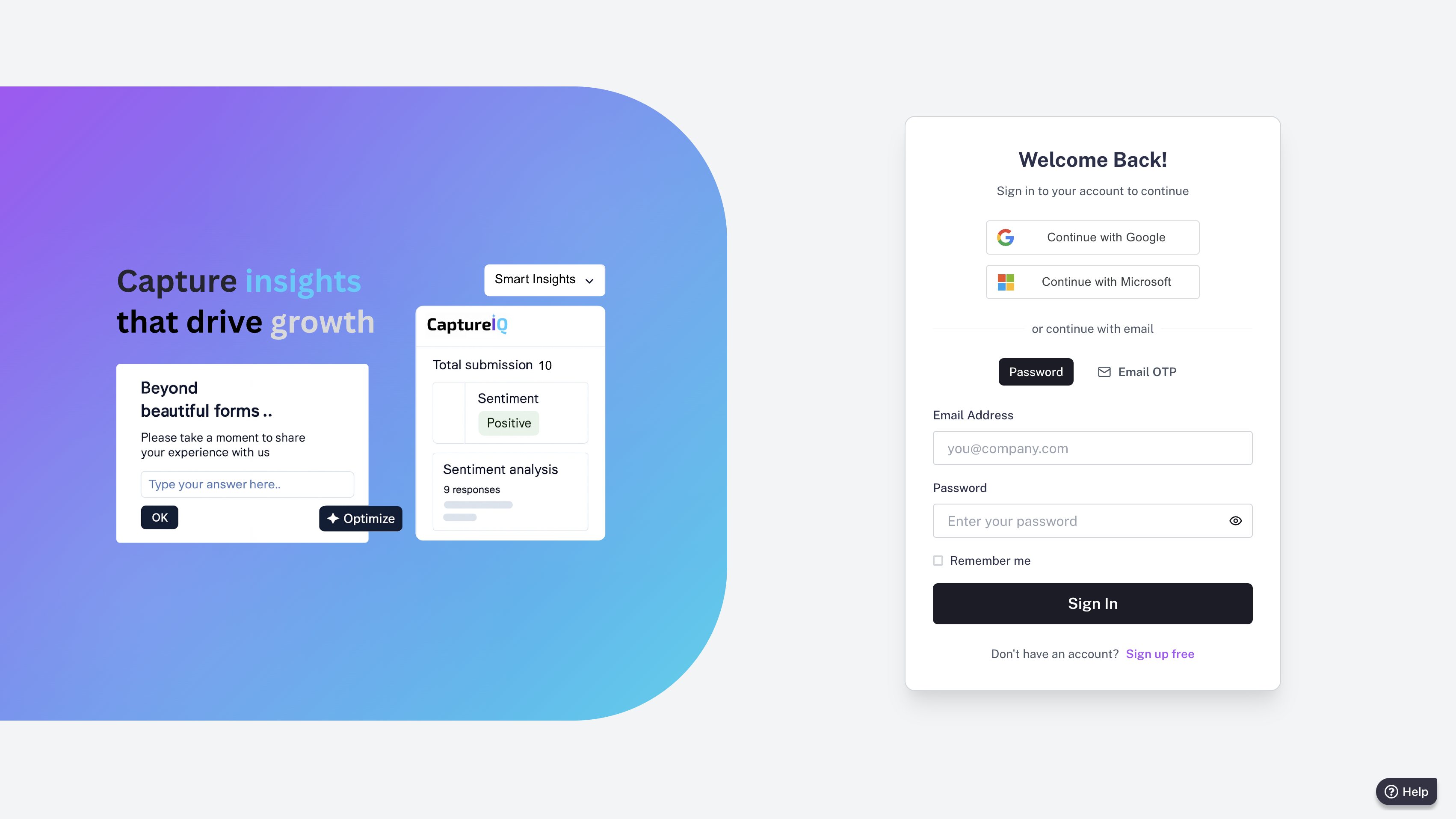
### 1. Visit the Login Page
Go to:[https://www.app.captureiq.ai/login](https://www.app.captureiq.ai/login)
### 2. Choose a Login Method
You can sign in using any of the following:
* Google Account
* Microsoft Account
* Email ID + OTP (One-Time Password)
 ### 3. (Optional) Set a Password
Once you’re logged in:
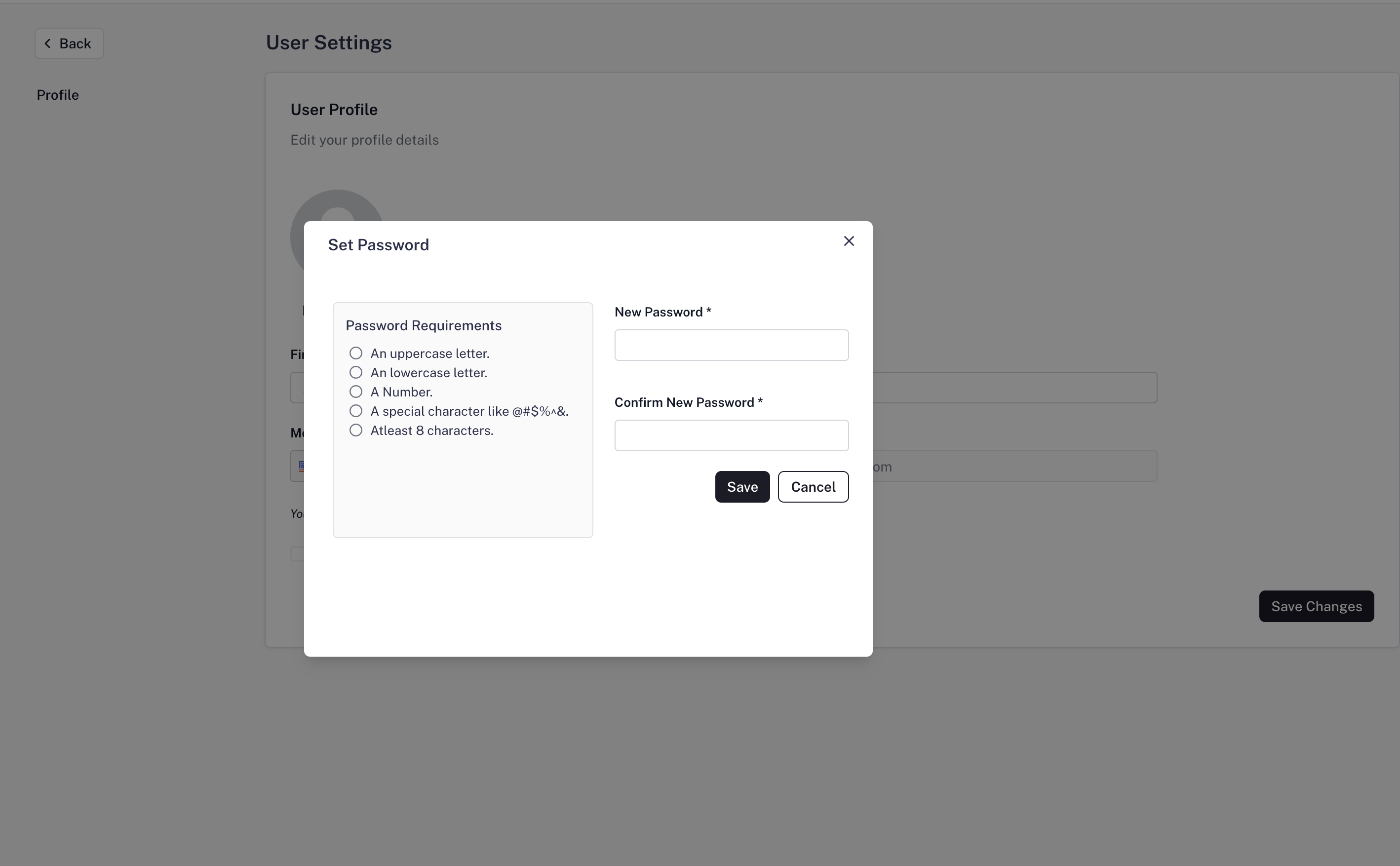
* Navigate to **Settings > Profile**
* Click on **Set Password**
### 3. (Optional) Set a Password
Once you’re logged in:
* Navigate to **Settings > Profile**
* Click on **Set Password**
 This is helpful if you initially logged in using OTP but want to enable traditional login in the future.
 Notes:
* You do not need to set a password if you continue using Google or Microsoft login.
* OTP-based login is secure and password-free — ideal for quick access.
Notes:
* You do not need to set a password if you continue using Google or Microsoft login.
* OTP-based login is secure and password-free — ideal for quick access.