

1. Creating a New Workspace
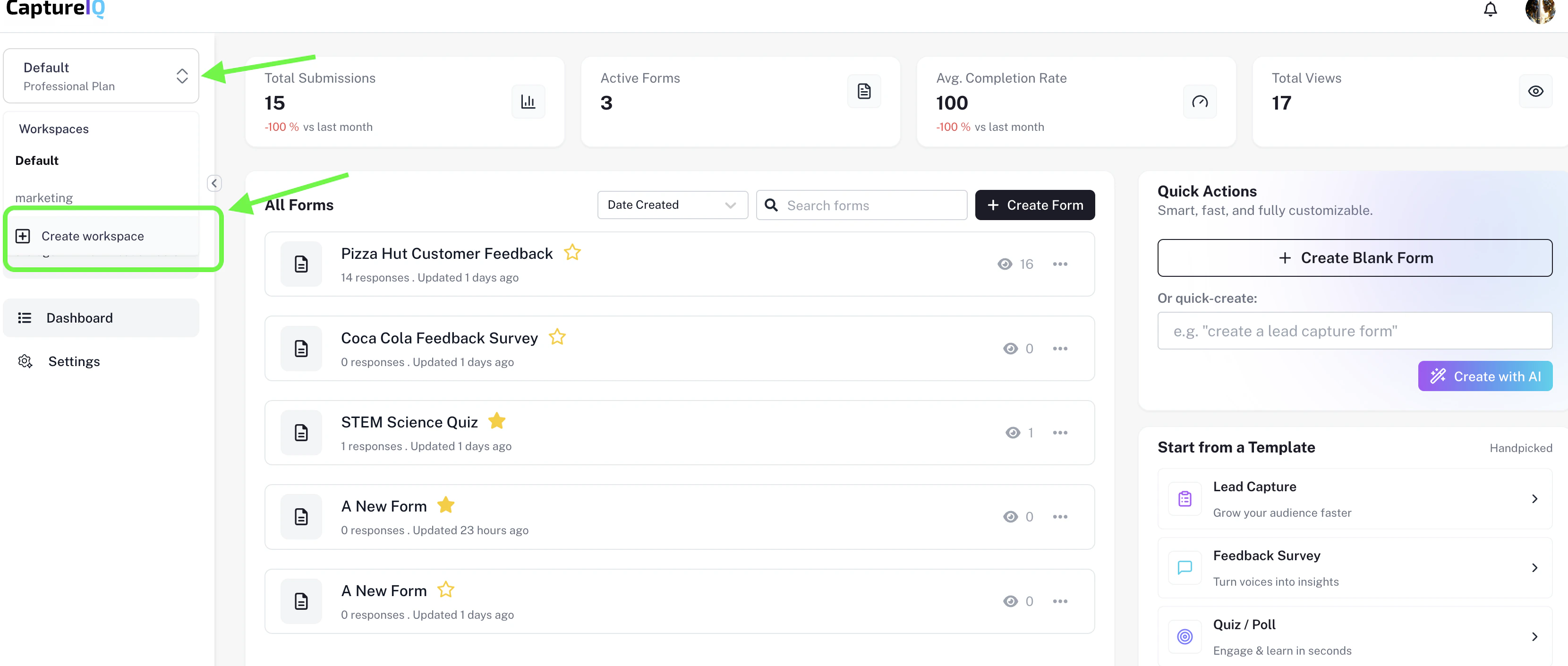
To create a new workspace:- Head to the top-left corner of your dashboard.
- Click on the current workspace name.
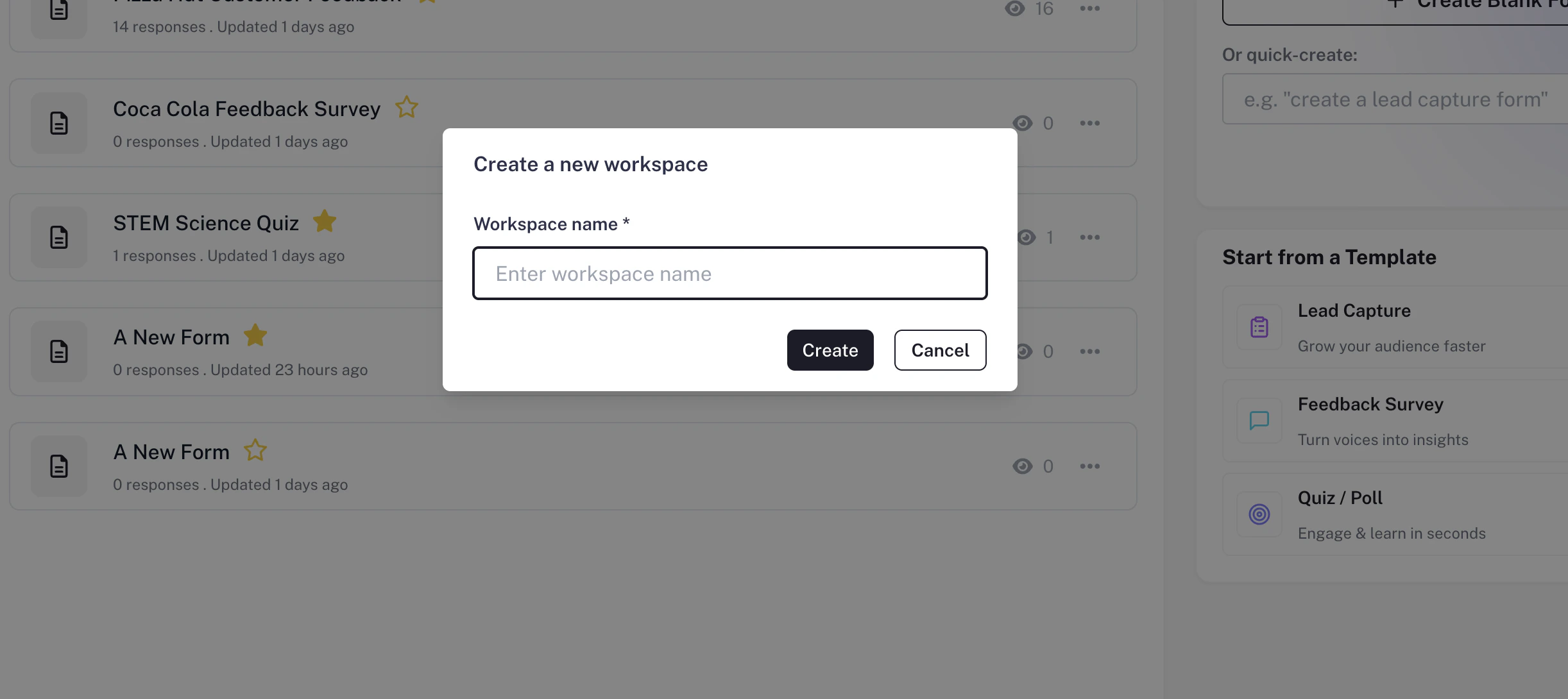
- Select “Create Workspace.”
Note: Workspace creation limits depend on your subscription plan.
2. Switching Between Workspaces
Managing multiple workspaces is simple:- Click the workspace dropdown in the top-left.
- Select the workspace you want to view.
3. Renaming a Workspace
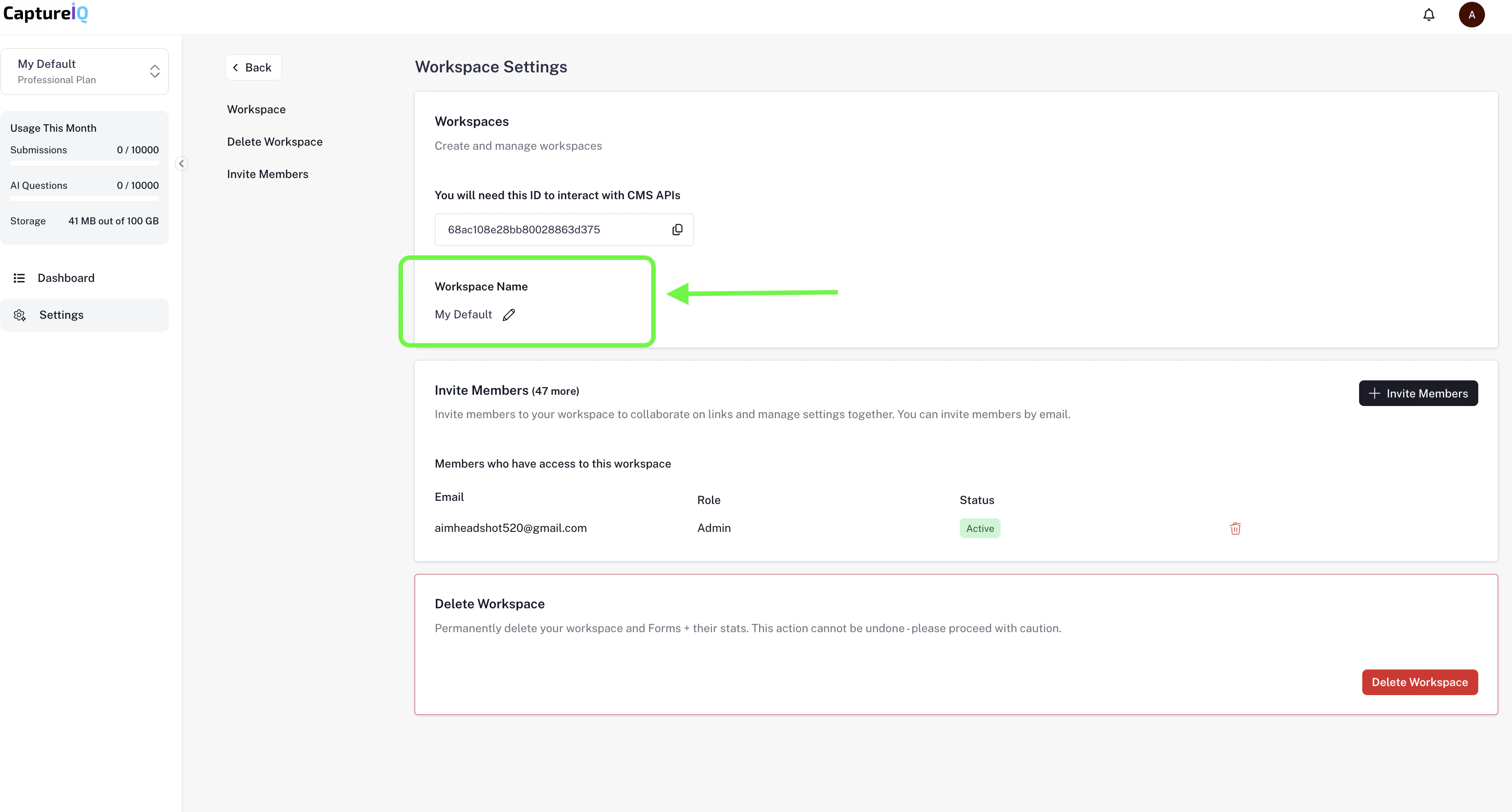
To rename an existing workspace:- Go to Settings > Workspace.
- At the top, you’ll see the workspace name field.
- Update the name and it will automatically reflect across your dashboard.
4. Shared Workspace Indicator
Shared workspaces are marked with a shared icon next to their name in the dropdown list. This helps you quickly identify whether a workspace is personal or collaborative.5. Workspaces by Plan
With CaptureIQ, you can manage multiple workspaces depending on your plan. Start solo with the Free plan and scale up to more workspaces as your needs grow.