

What you’ll see in Submissions List:
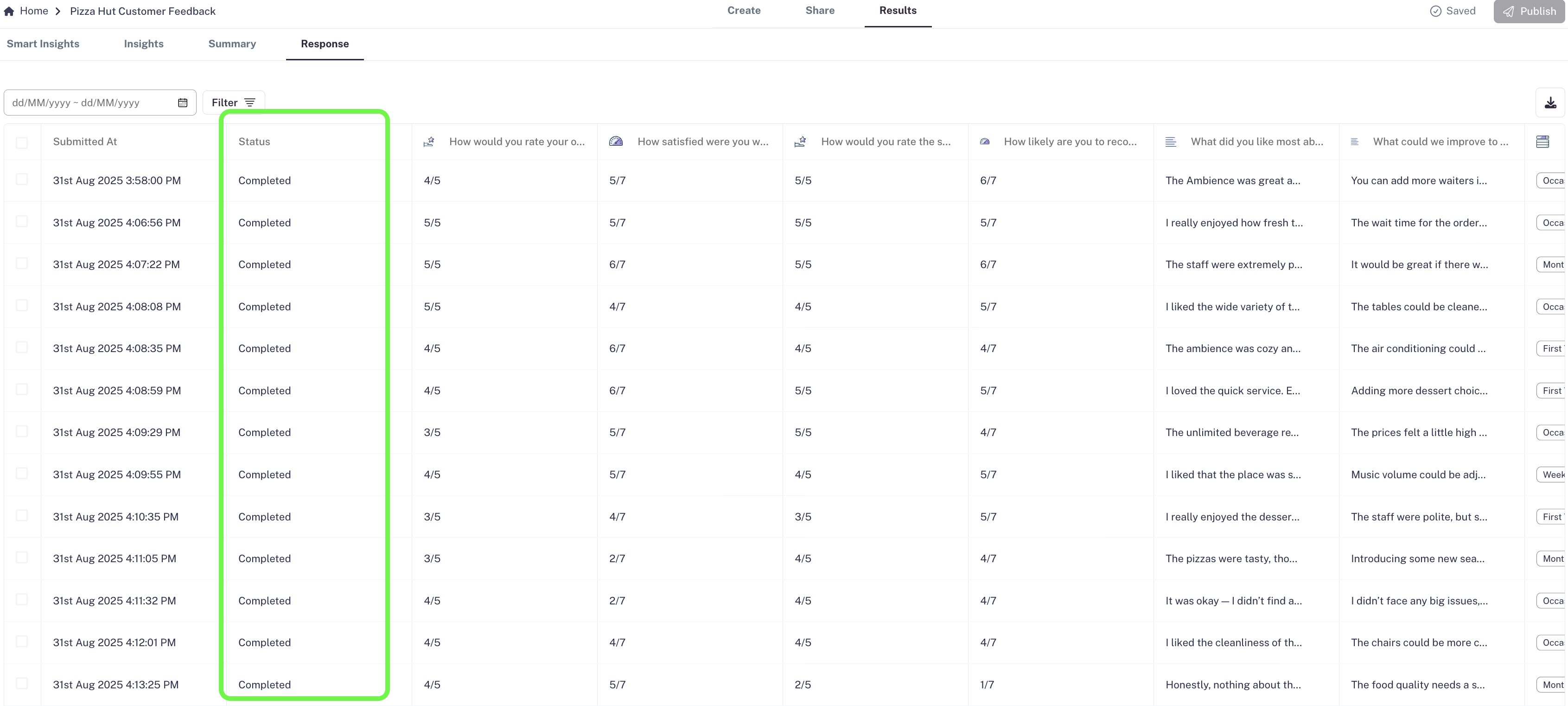
- A table of all submissions: Every submission is displayed in the exact way it was entered by the user.
- A status column: Each response is marked as either Completed or Partial, so you can easily track unfinished submissions.
Filters for smarter analysis:
At the top-left of the Results page, you’ll find two powerful filters:- Date Filter
- Narrow down responses within a specific time range.
- Useful for tracking campaigns, week-on-week progress, or monthly reports.

- Field-Level Filters
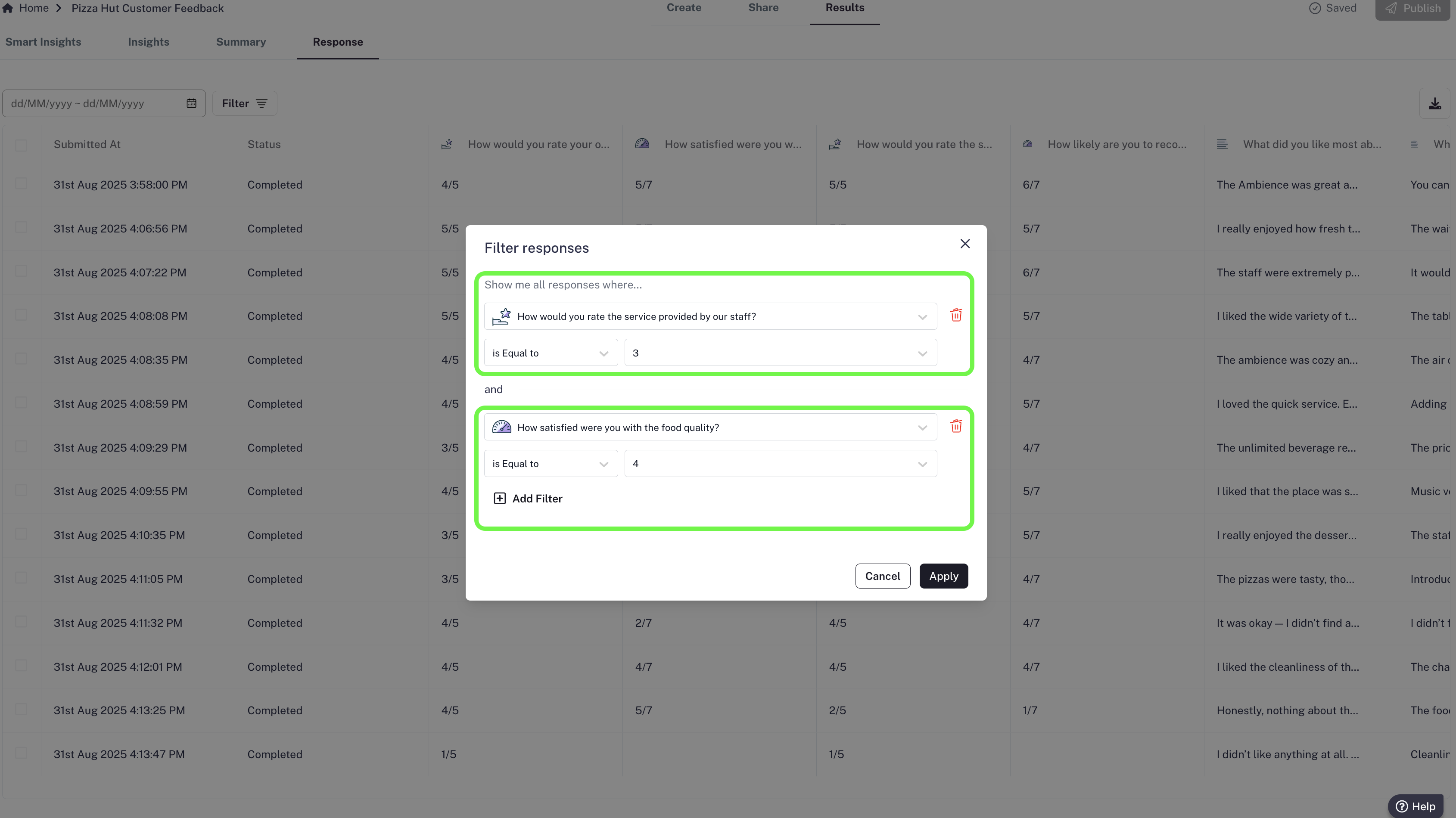
- Apply filters on individual fields for deeper analysis.
- Examples:
- Show only responses where the rating > 3.
- Filter Yes/No questions where the response = Yes.
- Combine multiple filters across different fields to find exactly what you need.
Why it matters:
The Submissions List is perfect when you want a quick, raw look at your data without diving too deep. It helps you:- Spot patterns in submissions.
- Focus on relevant submissions.
- Cleanly segment submissions for reporting or follow-ups.