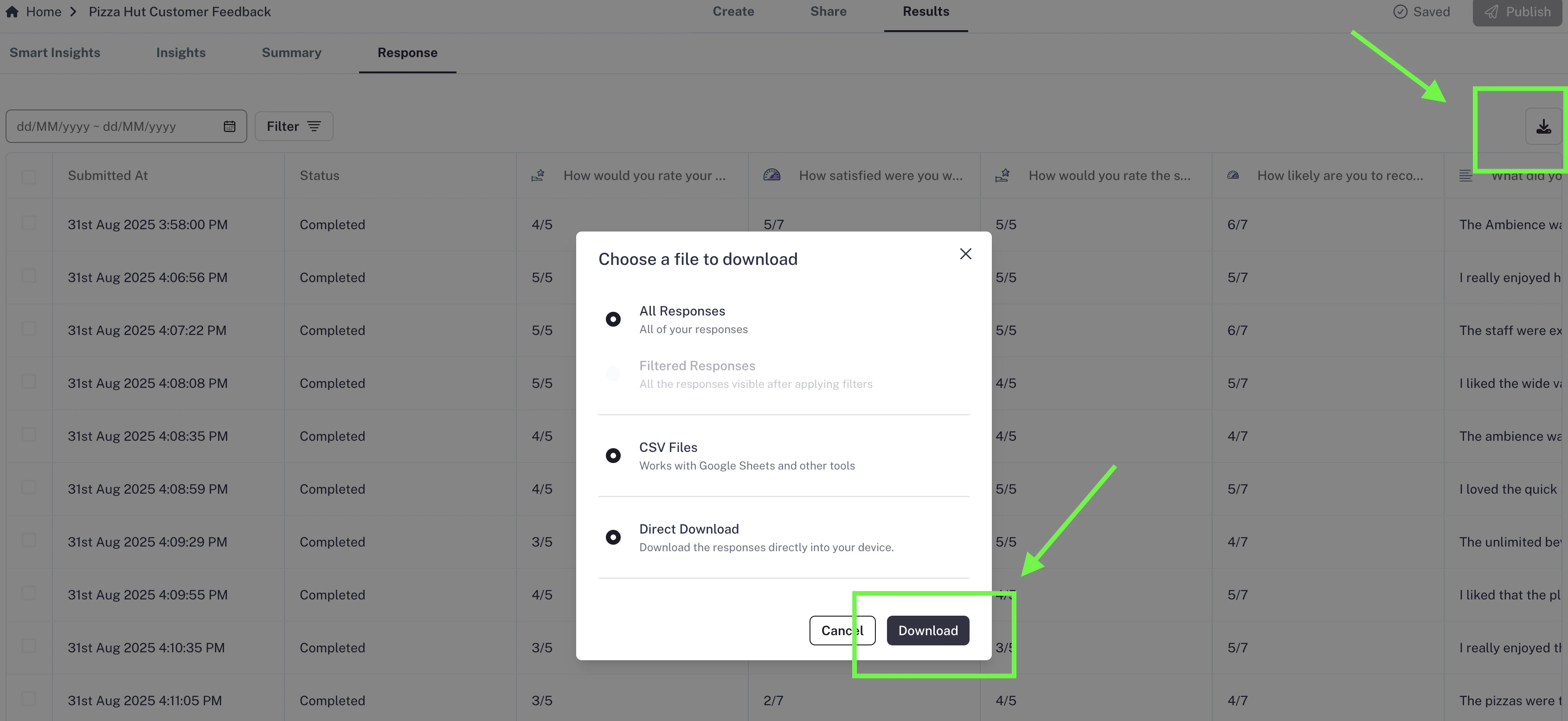
Once your form starts collecting responses, you may want to export them for deeper analysis or to share with your team. CaptureIQ makes this super easy.
Step 1: Go to the Results tab
Open any published form .
click on Results tab from top navbar.
Step 2: Switch to the Responses tab
Inside Results, go to the Responses section.
Here you’ll see all the collected submissions in a structured view.
Step 3: Download your responses
On the top-right corner , you’ll notice a download button .
Currently, CaptureIQ supports exporting in CSV format .
Step 4: Use your CSV file
Once you press Download , a CSV file will be generated with all the responses and related data.
You can open this CSV in tools like Excel, Google Sheets, or any analytics platform .
This allows you to:
Run custom analysis
Create charts or pivot tables
Share the data easily with your team or stakeholders
Exporting responses regularly helps you keep a backup and also makes it easier to run custom reporting outside CaptureIQ.