1. Share the Form Link
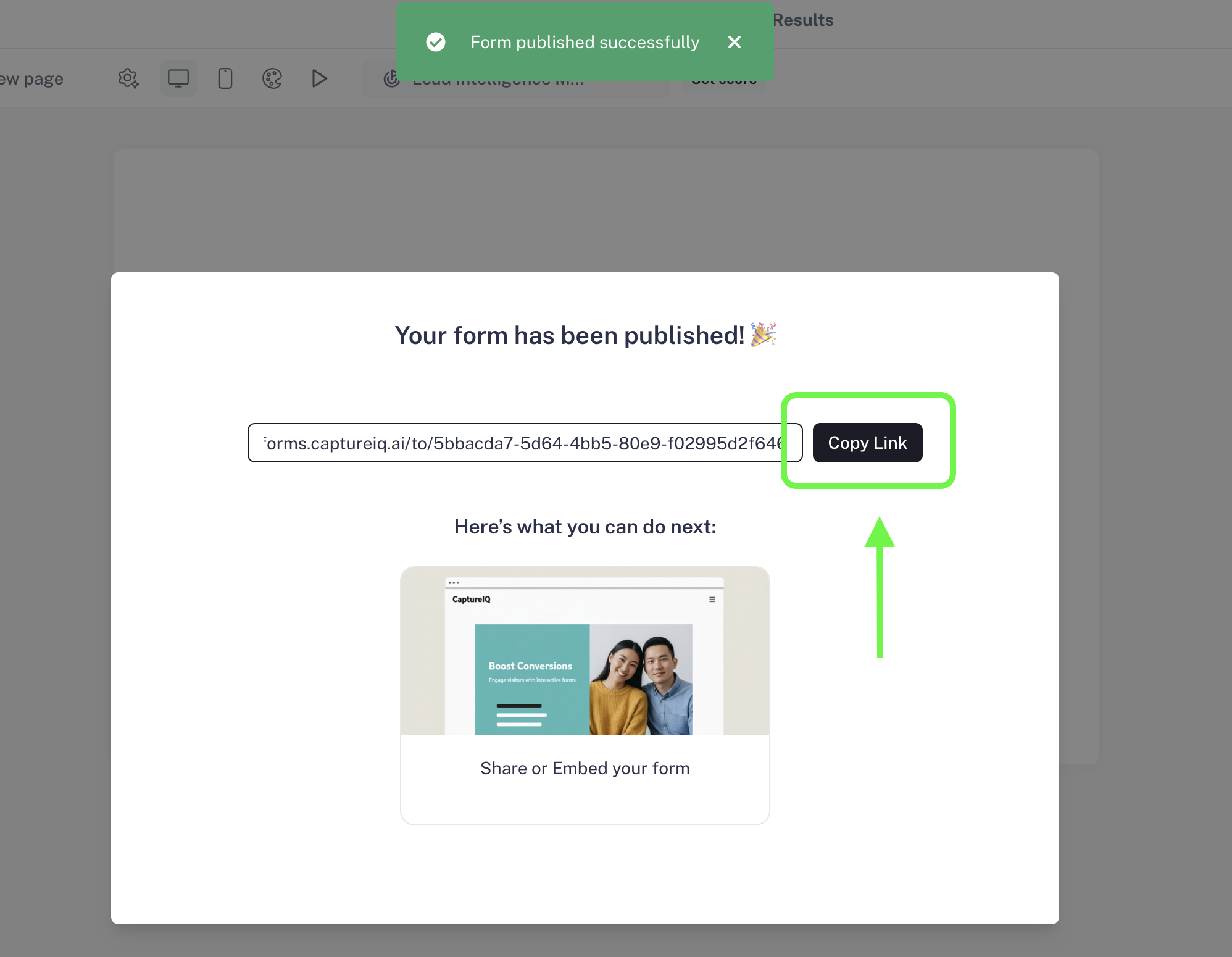
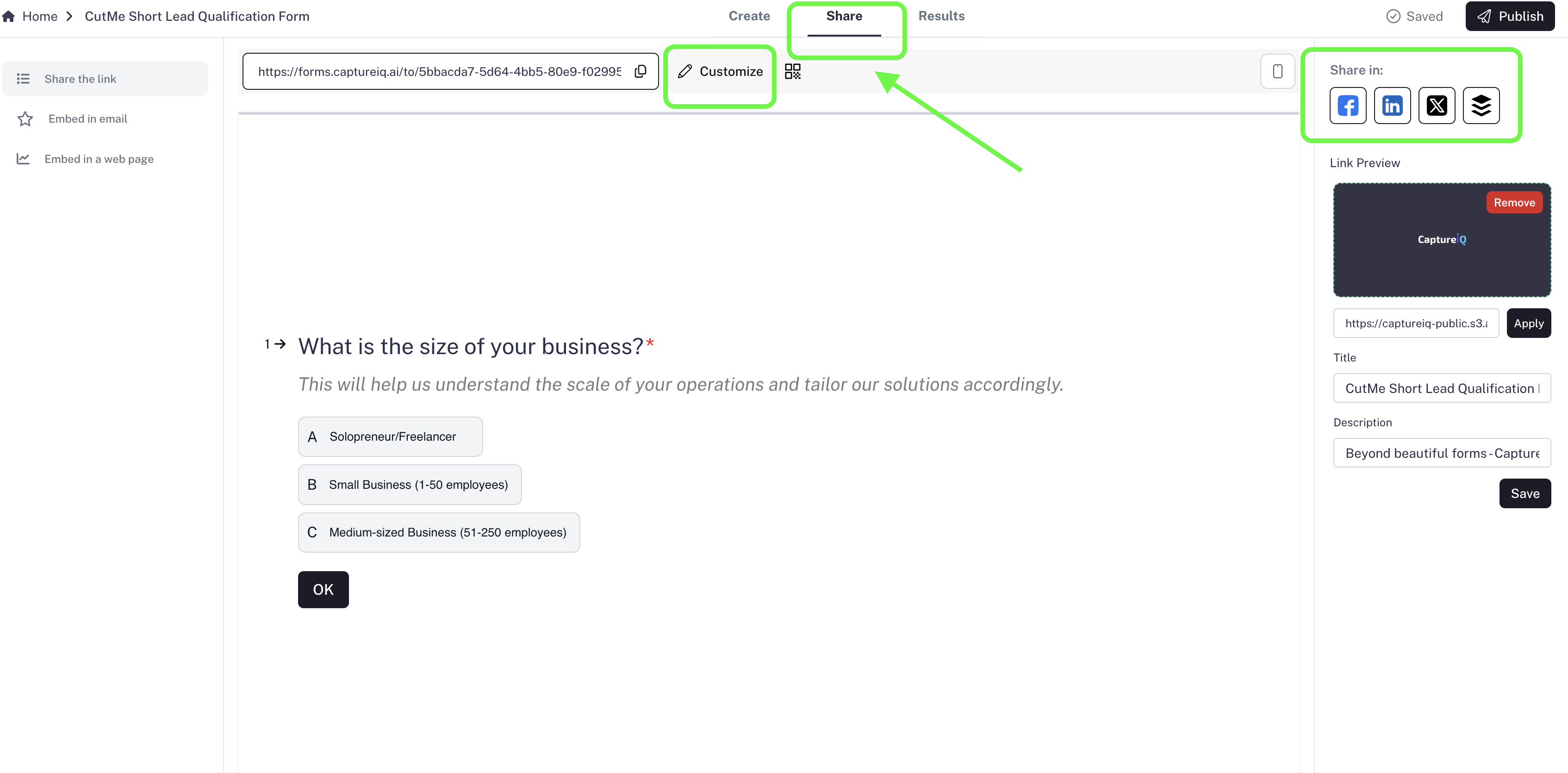
When you click Publish, CaptureIQ generates a unique link for your form.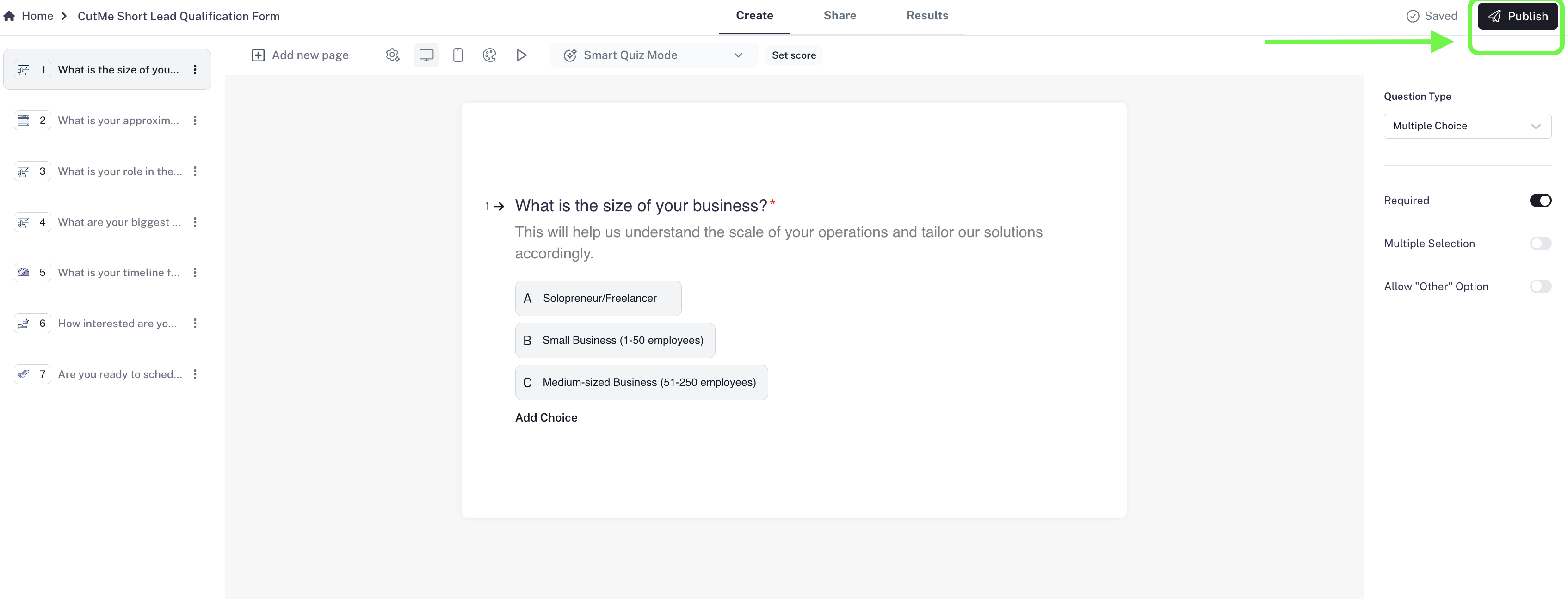
- This link can be copied and shared anywhere: email, social media, WhatsApp, or directly on your website.
- As soon as someone clicks it, they’ll be taken to your live form.
2. Embed Form in Email
CaptureIQ also provides an email embed option to make your form more engaging in newsletters or campaigns.Important to know:
- Respondents cannot fill the form inside the email itself (most email providers don’t support this).
- Instead, the first question of your form is displayed inside the email as a teaser.
- When users click on it, the full form opens in their browser and they can continue filling it.
3. Customize the Form URL
Instead of using the default CaptureIQ link, you can make your form link branded and professional:- Custom Domain (CNAME setup): Host forms on your own domain, e.g.,
forms.yourcompany.com/survey. - Custom Slug: Edit the text after the slash, e.g.,
captureiq.ai/my-feedback.
4. Create a QR Code
With one click, CaptureIQ generates a QR code for your form.- You can download the QR code as an image.
- Place it on posters, brochures, packaging, menus, or any offline material.
- When scanned, it instantly opens your form on the respondent’s device.
5. Customize Social Media Previews (OGP Settings)
When you share your form link on social platforms (LinkedIn, Twitter/X, WhatsApp, Facebook), a preview card appears. CaptureIQ lets you customize:- The image (logo, banner, or custom graphic)
- The title
- The description
Best Practices for Sharing Your Form
- Always test your link before sending it to a large audience.
- Use a branded URL or QR code for offline promotions.
- Tease the form in your email campaigns with the embedded first question.
- Update your social previews to maximize clicks and engagement.
Final Note
With CaptureIQ, sharing a form is more than just sending a link. You get multiple ways to distribute your form — direct links, branded URLs, QR codes, email embeds, and optimized social previews — making it easy to reach your audience wherever they are.Start by publishing your form today and choose the sharing method that works best for your campaign.