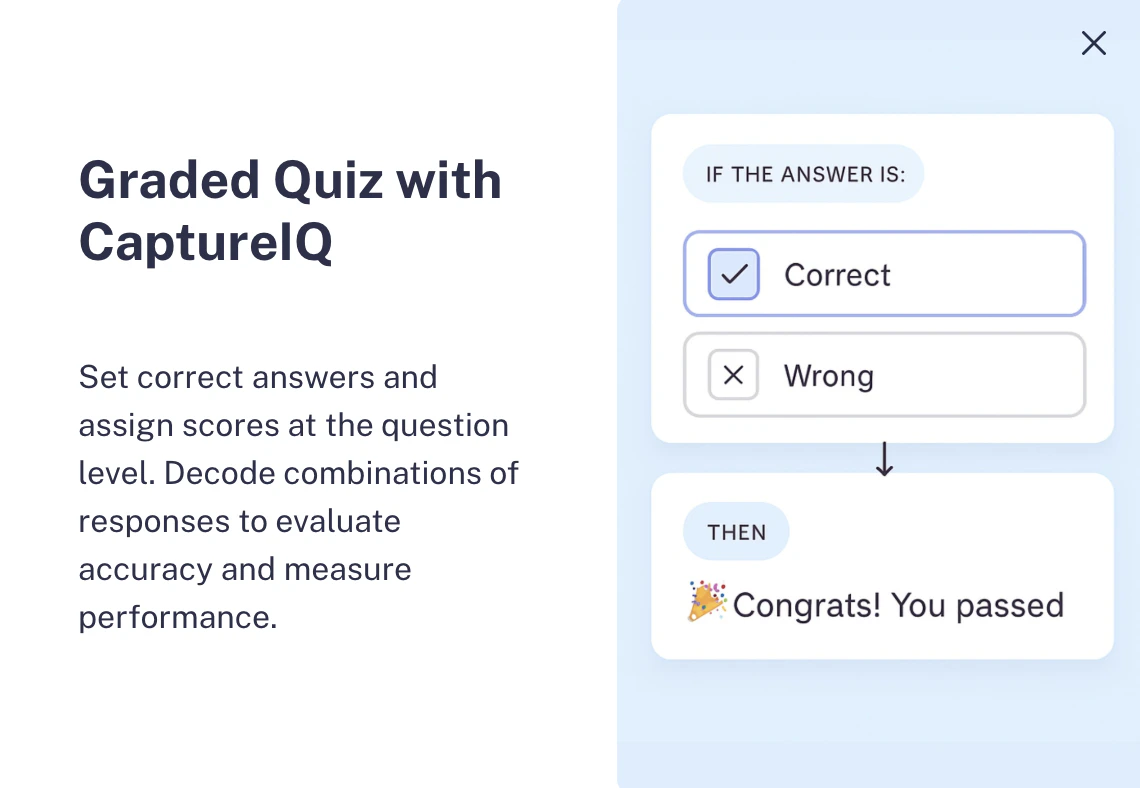
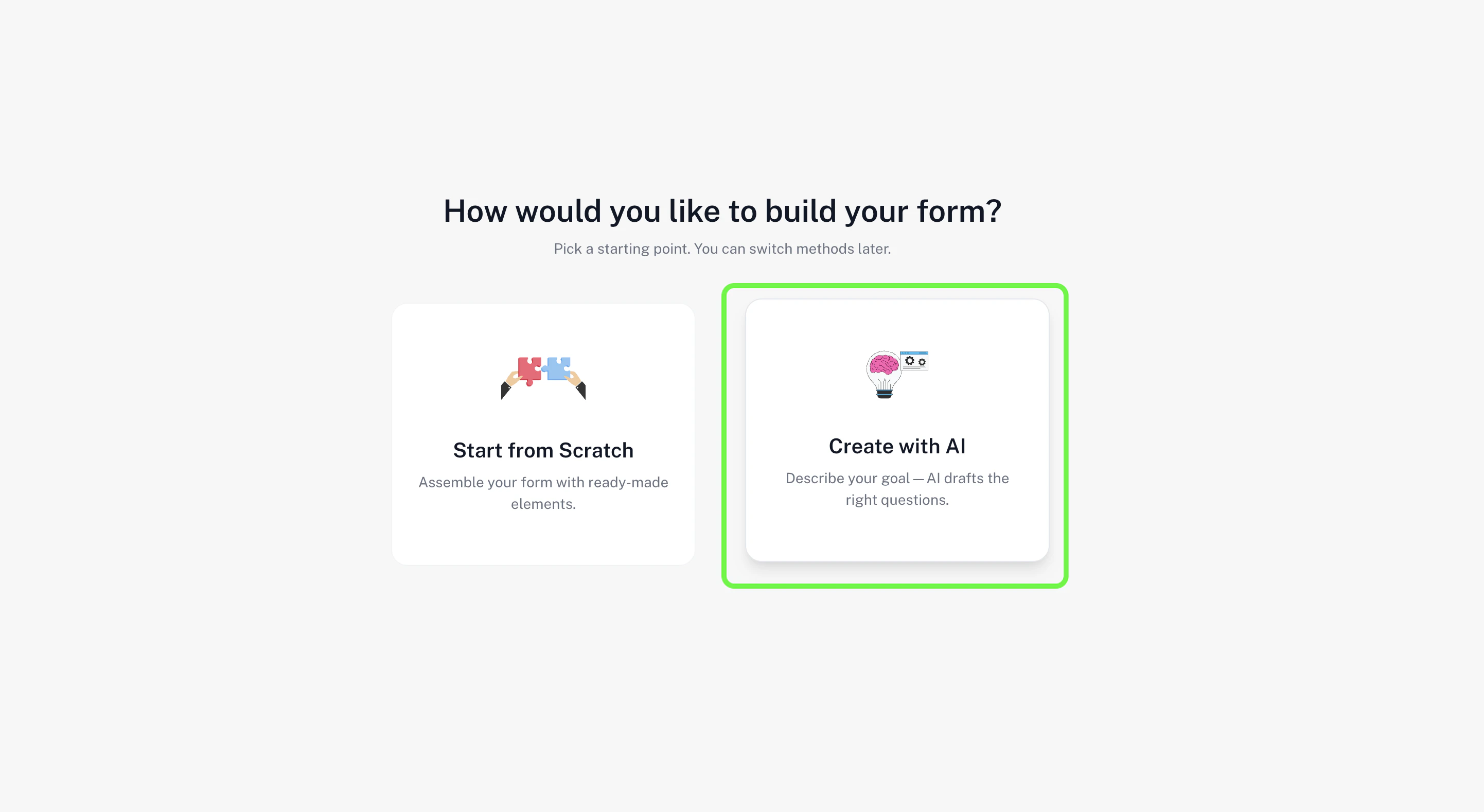
Graded quizzes are a great way to test knowledge, assess performance, and score responses automatically. In CaptureIQ, you can easily build a graded quiz using either AI assistance or by starting from scratch. Screenshot 2025-09-28 at 2.57.56 PM.png When you press “Create Form” on the homepage, you’ll see two options:
  • Create with AI
  • Create from Scratch
You can use both methods to create graded quizzes. Below we’ll walk through both approaches. Screenshot2025 09 28at2 58 53PM Pn

1. Create Graded Quiz with AI

  1. On the homepage, select Create with AI.
  2. Choose Create for all forms.
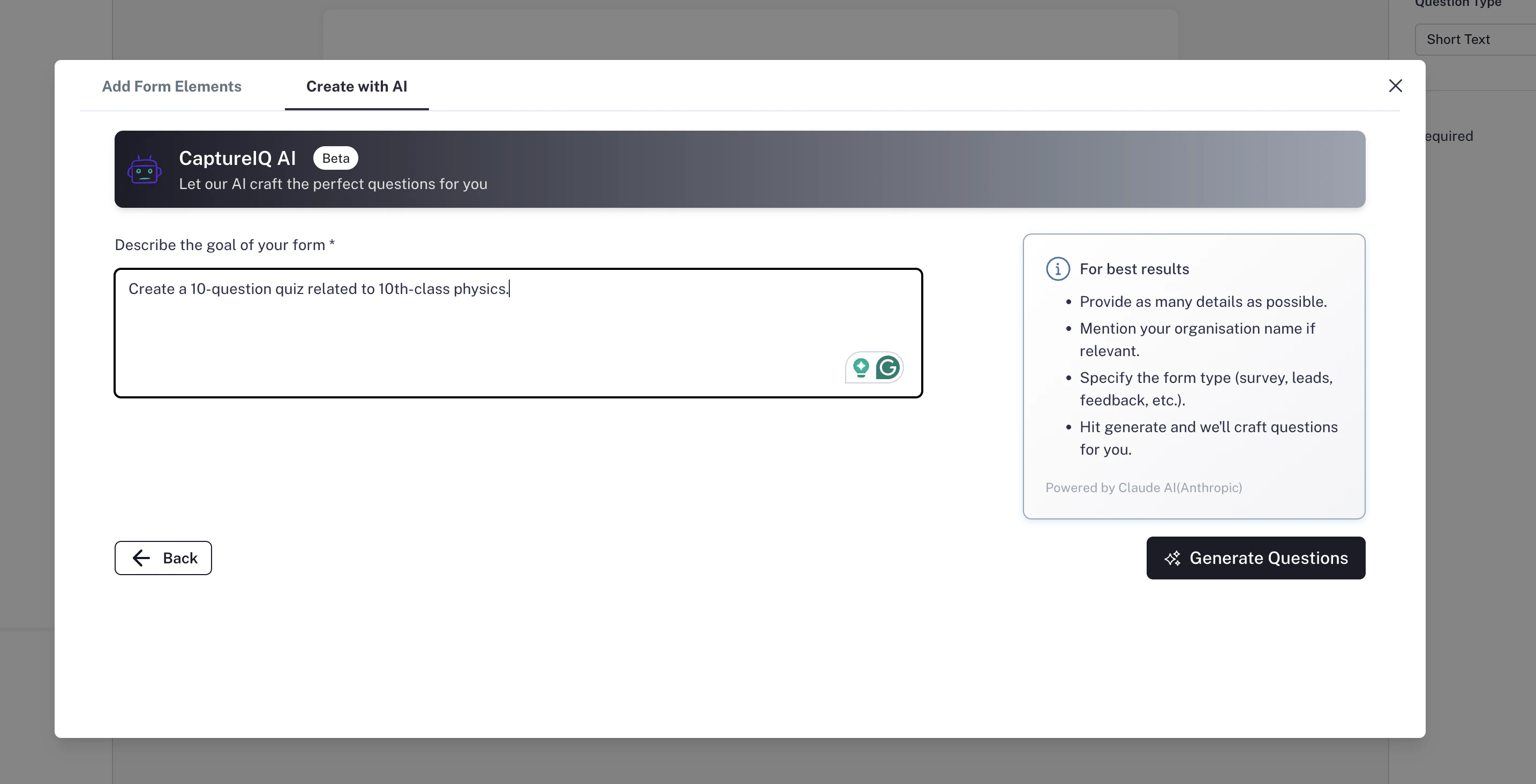
  3. In the input box, describe your quiz in detail. Mention:
    • The type of quiz (subject, topic, theme)
    • The type of questions (e.g., multiple choice, dropdown, yes/no)
    • The number of questions
    • The difficulty level
    • Any specific instructions for close-ended fields (important for grading).
    Since this is a graded quiz, it’s best to use close-ended fields like multiple choice, dropdowns, and yes/no, because they allow you to set correct answers and scores.
Screenshot2025 09 06at1 19 18AM Pn
  1. After you provide a detailed prompt, the AI will generate the quiz for you.
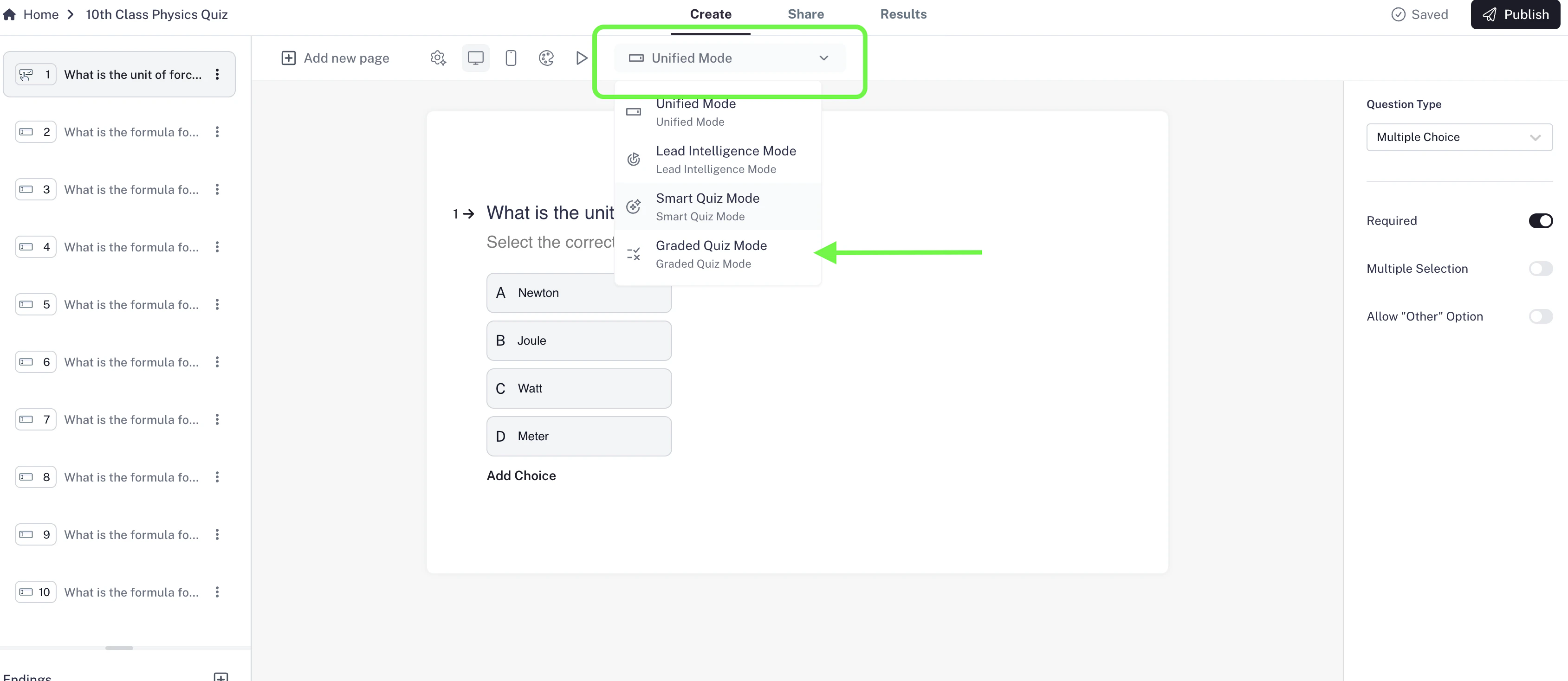
  2. You’ll be redirected to the form edit page, where all your questions will already be listed. Review them, cross-check, and make small edits if needed.
  3. Click Preview to check if everything looks good.
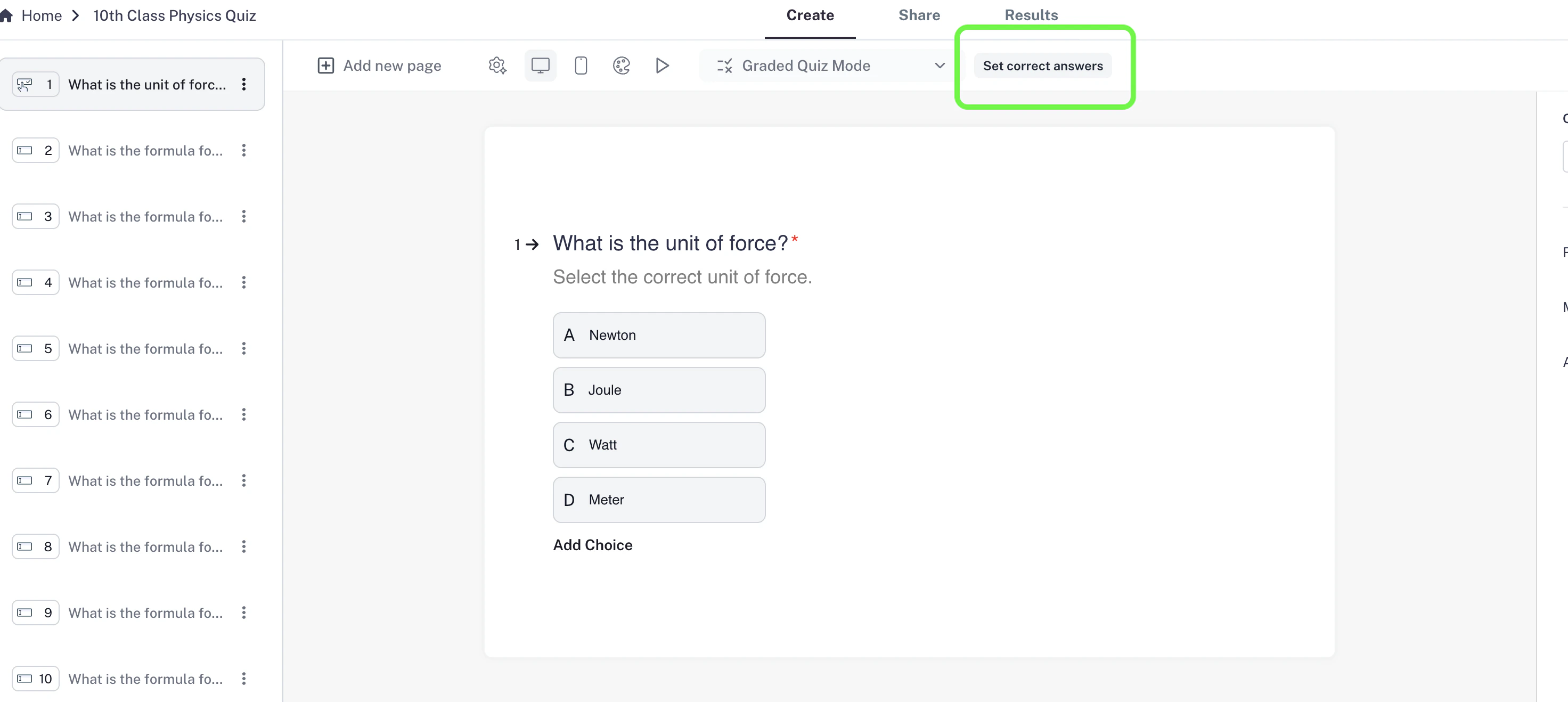
  4. Now, in the tool bar (next to the Preview button), open the Form Mode dropdown.
  5. Change the mode from Unified Mode to Graded Quiz Mode.
Screenshot2025 09 06at1 20 00AM Pn
  1. Once you select this, you’ll see a “Set correct answer” button appear.
Screenshot2025 09 06at1 21 11AM Pn
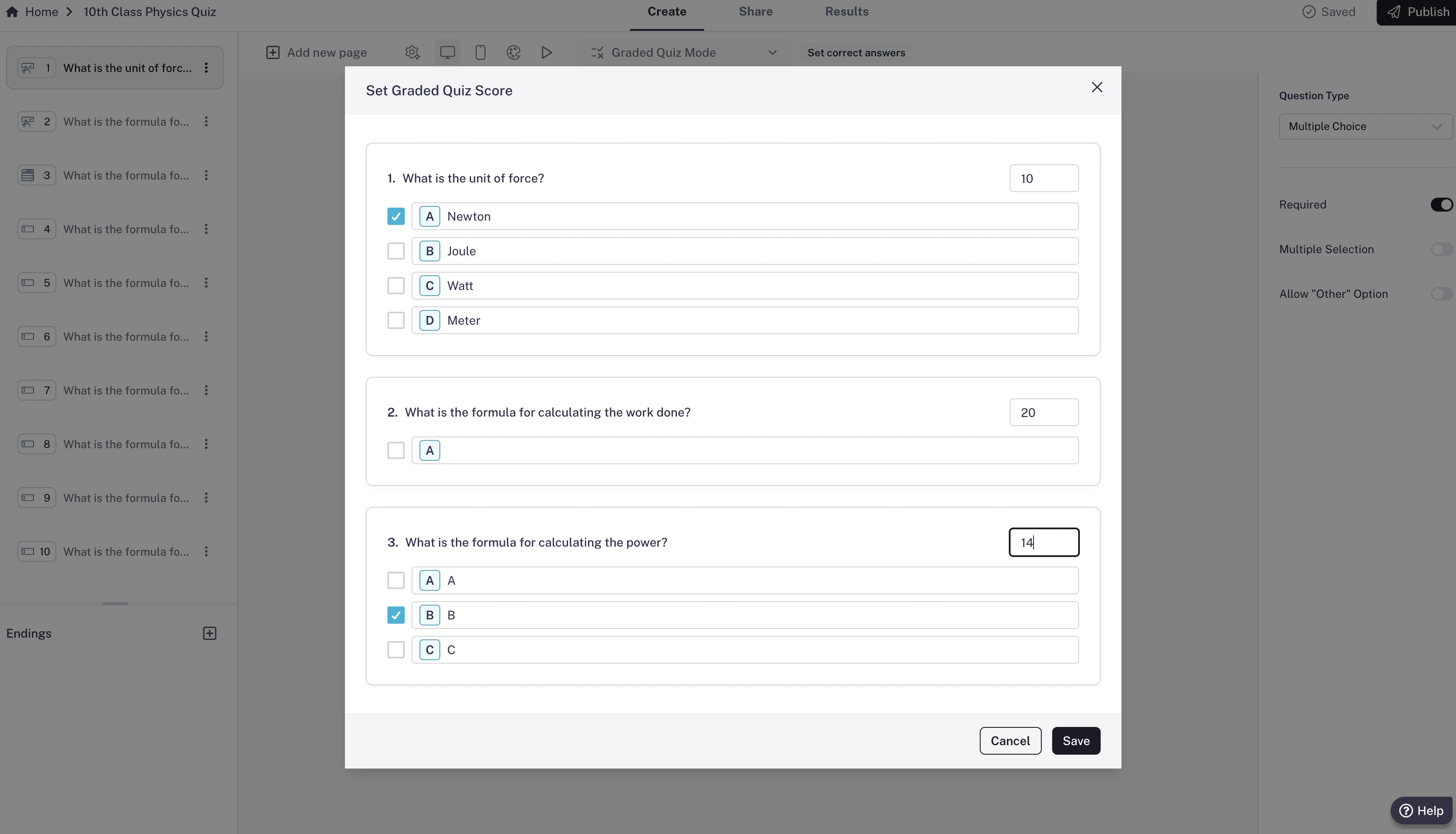
  1. Click on it to open a list of all valid questions. Here, you can:
    • Mark the correct answer for each question.
    • Assign scores for correct answers.
Screenshot2025 09 28at3 03 04PM Pn
  1. Press Save, then Publish your quiz.
You’re all set — your AI-generated graded quiz is live!

2. Create Graded Quiz from Scratch

  1. Select Create from Scratch from the homepage.
Screenshot 2025-09-28 at 3.01.20 PM.png
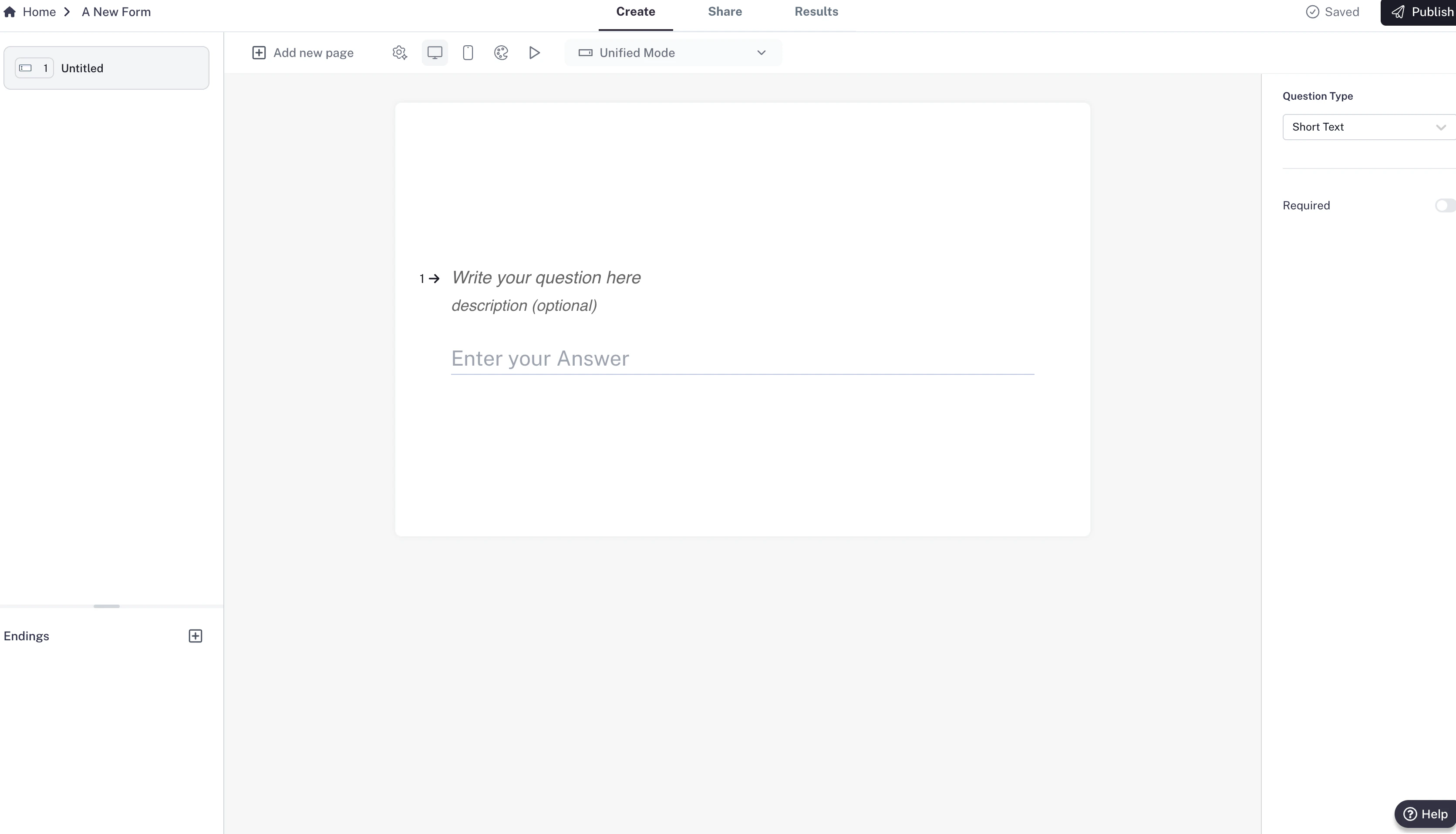
  1. You’ll land on an empty form canvas.
  2. In the tool bar, change the Form Mode from Unified Mode to Graded Quiz Mode.
  3. Start adding your quiz questions one by one by selecting relevant field types. For example:
    • Multiple choice
    • Dropdown
    • Yes/No
    • Other close-ended formats
Screenshot2025 09 28at2 22 54PM Pn
  1. Write your question title and description for each field.
    Tip: You can also refine your questions with AI here to make them more clear and engaging.
  2. Once all your questions are added, click Set correct answers.
  3. For each question:
    • Select the correct answer(s).
    • Assign scores for correct responses.
  4. Make sure all fields are set to Required Mode (since this is a quiz, every question should be answered).
  5. Click Save and then Publish your quiz.
Your quiz built from scratch is now live!

Viewing Quiz Scores

After your quiz is published and responses are collected:
  1. Go to the Results tab > Responses.
  2. The responses will appear in a tabular format.
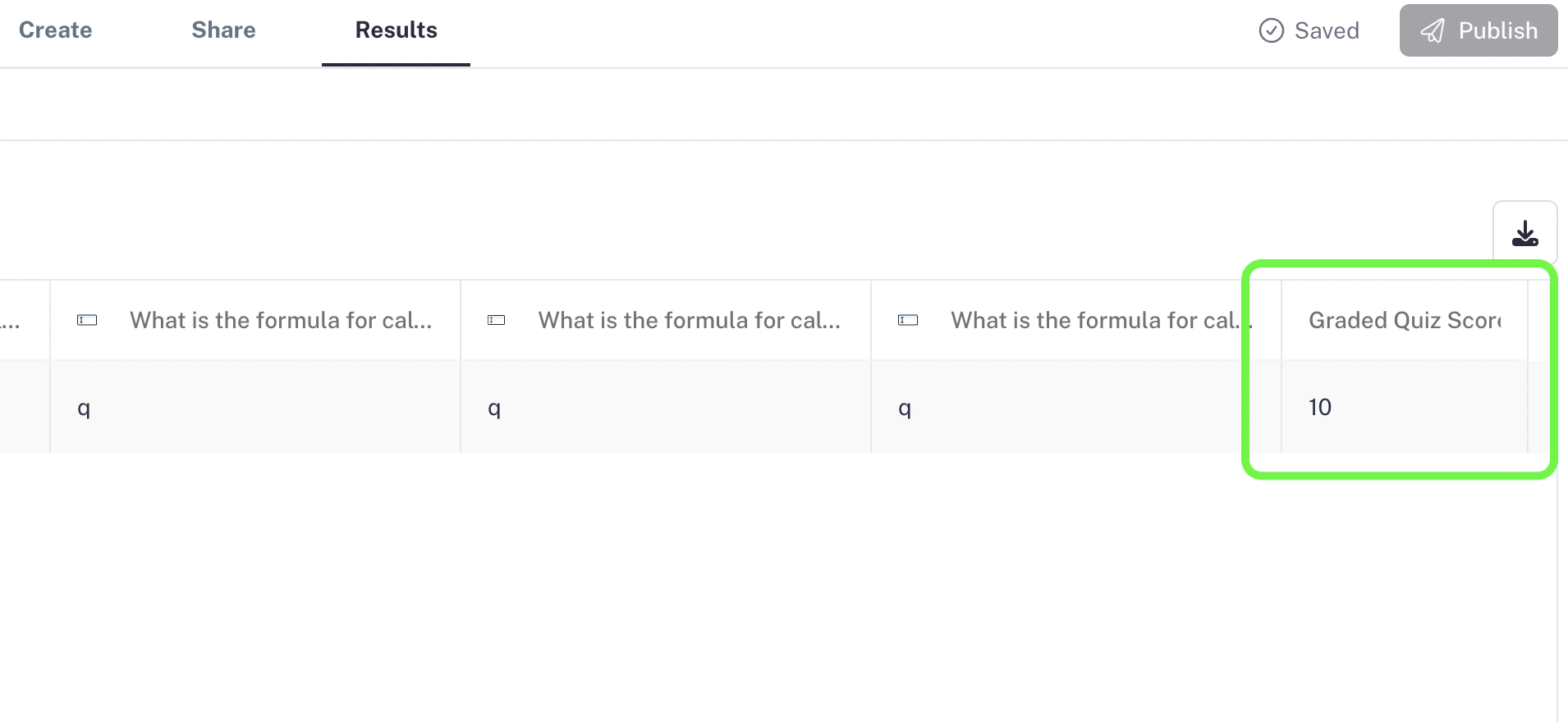
  3. Scroll to the last column, where you’ll see “Graded Quiz Score.”
  4. This column shows the final score for each respondent, based on the correct answers and the scores you assigned.
Screenshot2025 09 06at1 24 05AM Pn That’s it! You’ve successfully created a graded quiz in CaptureIQ — either with AI or from scratch.