

Note: This feature is available only on Essential, Growth, and Professional plans (not available on the Free plan).
Step 1: Open End Screen Settings
- After adding all your questions, look at the bottom-left panel.
- Click on Ending add icon button.

Step 2: Choose Your Ending Type
You’ll see two options. You can pick either one:Option 1: End Screen
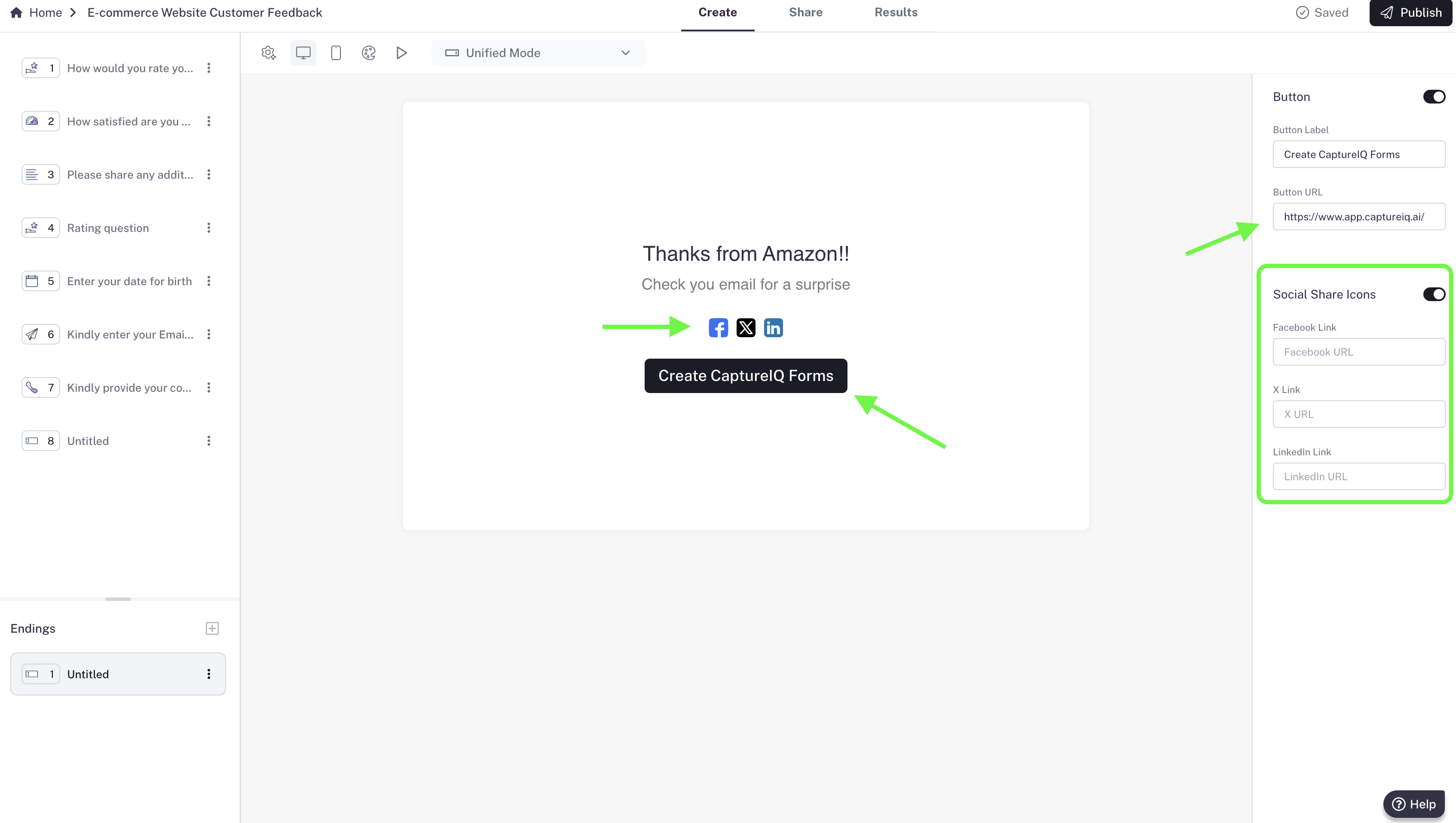
- Add a custom title and description to display when the form is submitted.
- Include a button:
- Customize the button text.
- Add a URL so users can visit your URL if they click it.
- Add social media buttons (Facebook, X, LinkedIn):
- Each icon can be linked to your respective profiles.
- Customize everything from the right panel.
Option 2: Redirect URL
- Instead of showing an end screen, you can automatically redirect users to any URL after submission.
- Once they submit, they’ll instantly land on your chosen page.
- This is a powerful way to:
- Drive traffic to your website
- Take users to a thank-you page
- Show them an offer or next step

Step 3: Save Your Choice
- Once you’ve customized your ending, published your form.
- Your form will now follow the chosen flow after submission.