More than half of form submissions today happen on mobile devices. The good news? All CaptureIQ forms are fully mobile-optimized by default.
Still, there are a few things you can do during creation to make sure your form is smooth and easy to complete on smaller screens.
Step 1: Preview in Mobile View
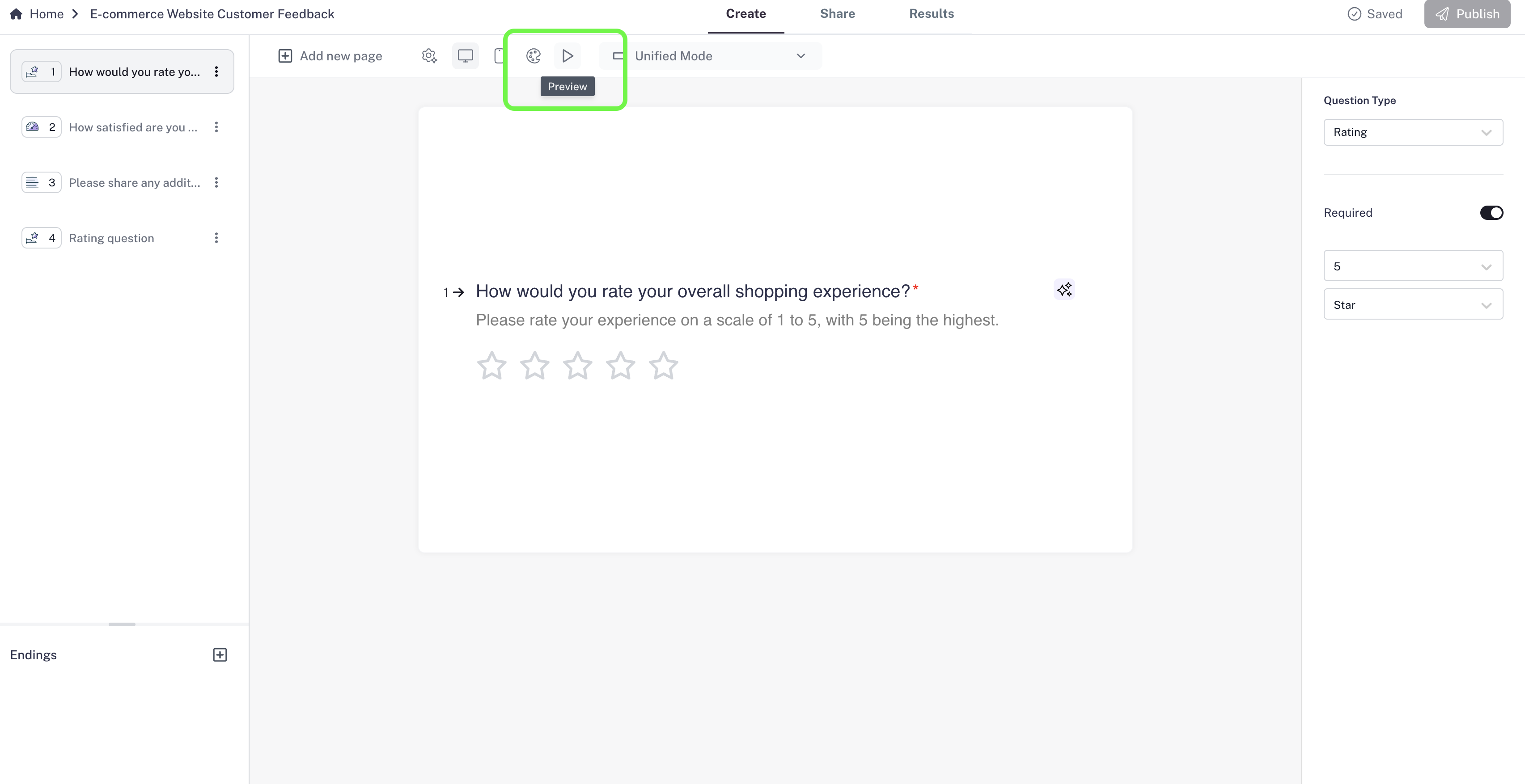
While creating your form, open the Preview .
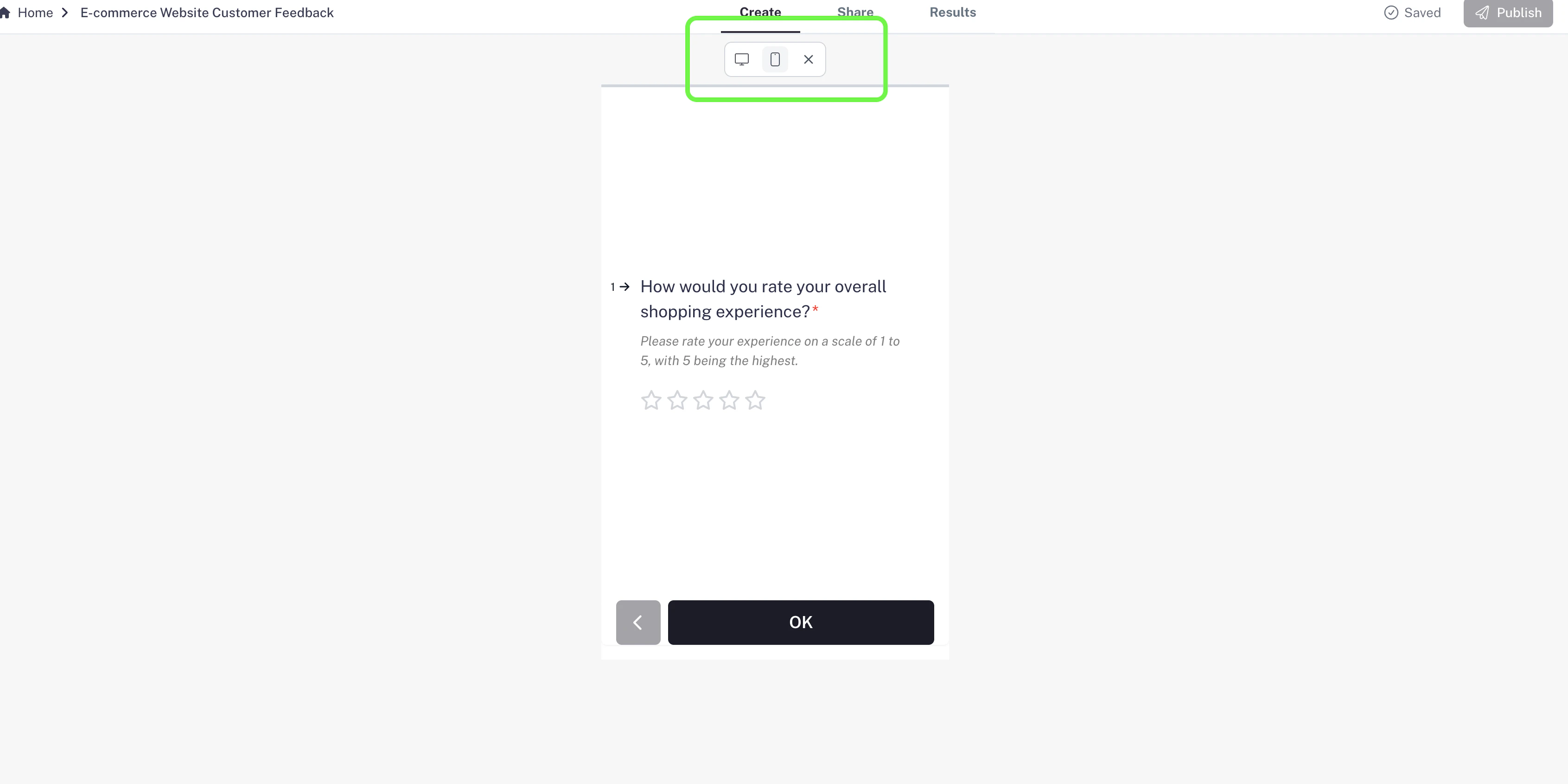
Switch to Mobile View to see exactly how it will look on a phone.
This helps you adjust your content to make sure it’s not too crowded or text-heavy.
Step 2: Keep Questions Short & Clear
Mobile users are often on the move, so keep your questions short and simple .
Avoid long paragraphs or complex wording that might feel overwhelming on a small screen.
Step 3: Limit Answer Choices
Too many options can make a mobile screen cluttered.
For Multiple Choice or Dropdown questions, try to keep answer choices concise and limited.
The goal: users shouldn’t need to scroll endlessly to see all options.
Step 4: Test Before Sharing
Always test your form in Preview Mode on both desktop and mobile views.
This lets you experience it exactly as your respondents will.
Make adjustments if something feels too long or crowded.
Pro Tip: Shorter forms usually perform better on mobile. If your form is long,
consider breaking it into smaller sections or even separate forms.